





This week we released our much anticipated FME 2026.2 for Form and Flow! This release is packed with lots of new features to explore and play around with. A few members of our Customer Experience team wanted to highlight a few of their favourite new features!
If you want to explore the full list of new features, please see the Release Highlights post available here.
MCP Server for FME Flow
This week we're getting a sneak peek at one of the features we're most excited about in FME Flow 2026.2: MCP Servers!
If you've been keeping an eye on the AI space, you've probably heard about the Model Context Protocol. It's quickly becoming the standard way for AI assistants to connect to outside tools and data, and now FME is right there in the mix. The best part? You can take the workspaces you've already built and turn them into tools that any MCP-compatible client can connect to, all through a single server URL. No custom API code, no middleware, just a clean connection between your work and the AI tools ready to use it.
We put together a short demo walking through the FME Flow UI, and what really stands out is how little stands between you and a working setup. We create an MCP server, connect a tool to a workspace, and show how you can tell at a glance whether a workspace has an MCP Writer (which returns rich, structured output to the client instead of just a job status). If you've already got a workspace, you're most of the way there!
Want to see it in action? Watch our short demo video here: https://youtu.be/1Wehoftaf4A
Placeholders for Missing Transformers - FME Form
Ever opened a workspace and found mysterious gaps where transformers used to be? We've all been there — and it's never fun trying to figure out what is missing, let alone why.
In FME 2026.2, we've made that experience a whole lot better.
Missing transformers can happen for a few reasons: a linked custom transformer's FMX file isn't on your system, an FME Hub package hasn't been installed, or you're opening a workspace built in a newer version of FME than the one you're running. Previously, these missing objects just left gaps in your canvas — a bit like a puzzle with no picture on the box.
Now, FME Workbench 2026.2 gives you the full picture:
- Visual Placeholders — Missing items appear as red-outlined placeholders right on the canvas, so you can spot them at a glance.
- Navigator Integration — A new Unavailable Transformers node in the Navigator pane lists every missing object in one place.
- Easy Navigation — Click any item in the Navigator to jump straight to its location on the canvas.
- Built-in Safety — Workspaces with missing objects won't run until everything is resolved, so nothing slips through accidentally.
- Flexible Fixes — A few different options are available to help you correct missing canvas objects and get your workflow back on track.
Want to see it in action? Watch our short demo video here: https://youtu.be/6KxY69Czgn4
Looping - FME Form
With the release of FME 2026.2, loops can now be created on canvas in your main workspace. This change eliminates the need to use a custom transformer, which was somewhat complex to create. This will simplify the process of creating loops, making looping in FME more intuitive, faster to build and easier to troubleshoot.
The new looping feature gives you the flexibility to easily specify how many times you want the loop to run, and as the loop runs, you can see the number of iterations displayed in the loop block. This looping feature also allows you to work with blocking transformers seamlessly, without requiring any additional steps in your workflow.
What’s exciting about this feature is that it simplifies the process of creating loops in FME. It’s more intuitive than building a loop within a custom transformer, and it lets you see the loop running in your main workspace, making workflow design and troubleshooting much easier. Existing workspaces with loops built with the custom transformer can be easily migrated to take advantage of the new looping feature.
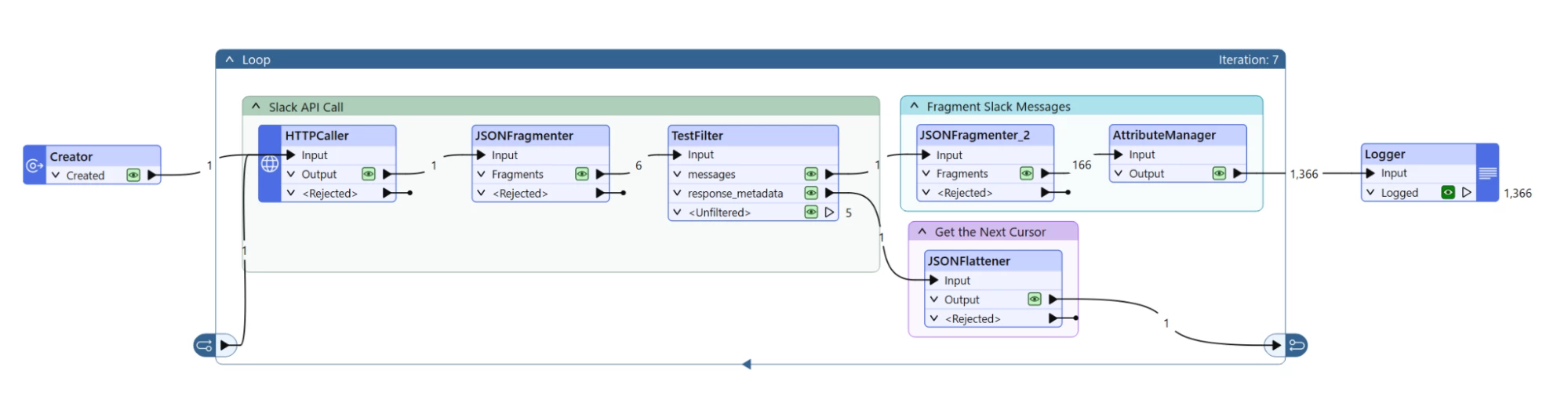
So whether you want to decide how many iterations you want your loop run, run the loop until a condition is met, work with nested loops, or run multiple loops within one workspace, this new looping feature does it all!