



Question

ACC Revit AutodeskDocsConnector - Download Linked Files?

  • February 23, 2026
  • 2 replies
  • 69 views

galigis
Enthusiast
Forum|alt.badge.img+22

Hi all,

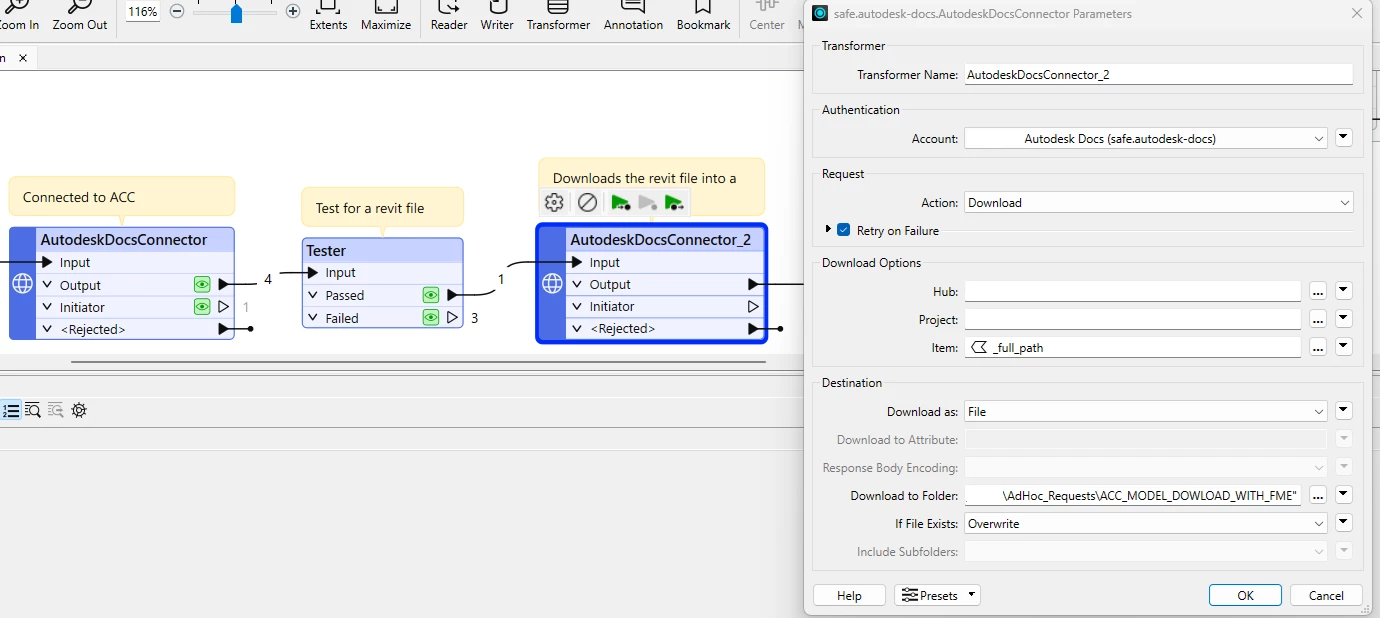
I’m currently working with several Revit files hosted on ACC, and I have put together a workflow that can read a specific ACC folder and identify a federated model. The process successfully reads and downloads the host file; however, I have been unable to download the associated linked files.

Is there a way to use the AutodeskDocsConnector to access and retrieve the linked files as well?
Thanks :)


2 replies

philippeb
Enthusiast
Forum|alt.badge.img+22
  • Enthusiast
  • February 26, 2026

Maybe you need to use a FeatureReader instead ?


evieatsafe
Safer
  • Safer
  • March 3, 2026

Hi ​@galigis great question, I just tested this with a Revit file with linked files in it. Like Philip mentioned, I believe using the FeatureReader would be the solution here. 


If you’re able to know what the files that may have links you can use the Revit reader in a FeatureReader and then the file path from ACC. Or, you could feed in the file name & ID after using the list function on the AutodeskDocsConnector.

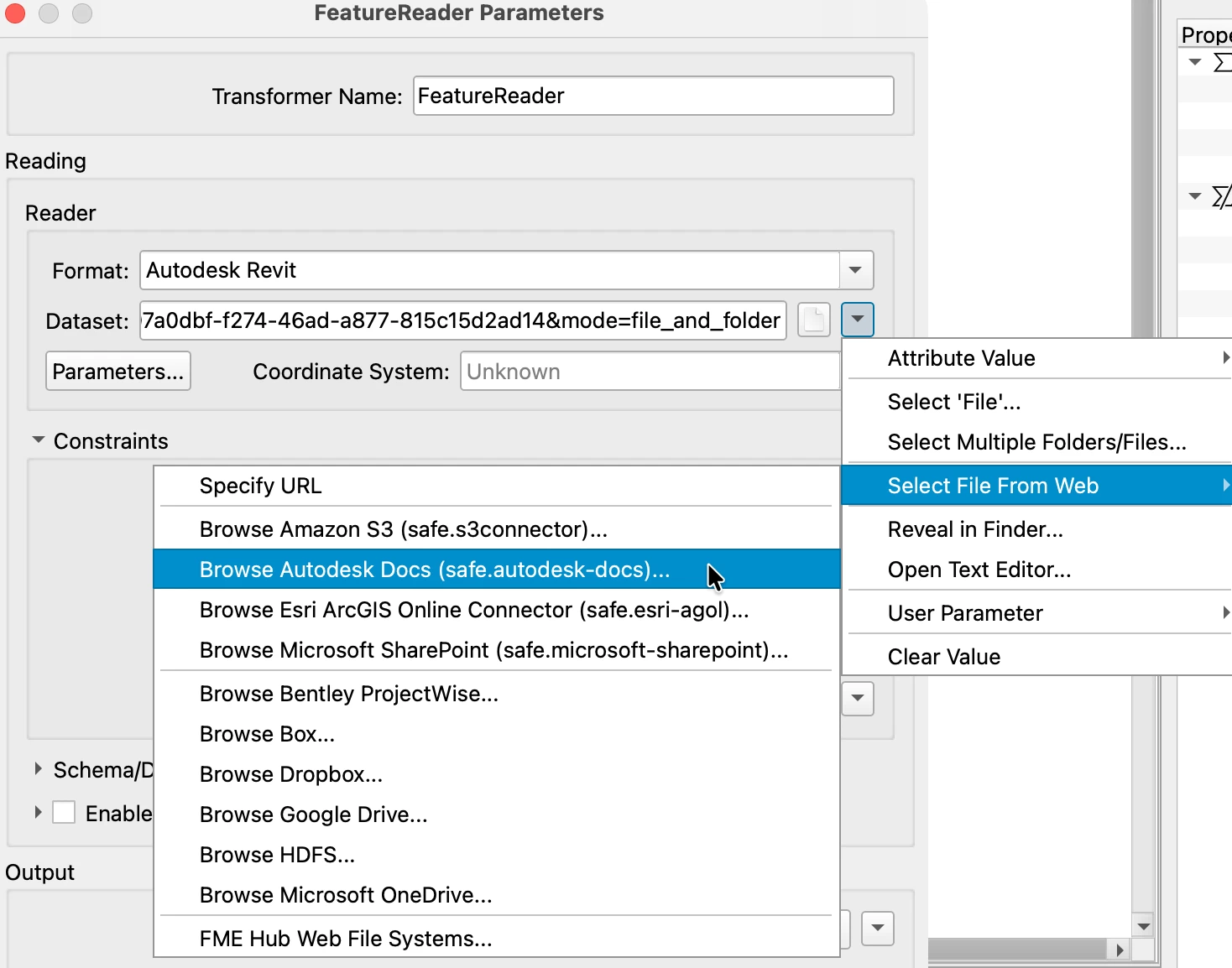
FeatureReader Parameters > Select File From Web

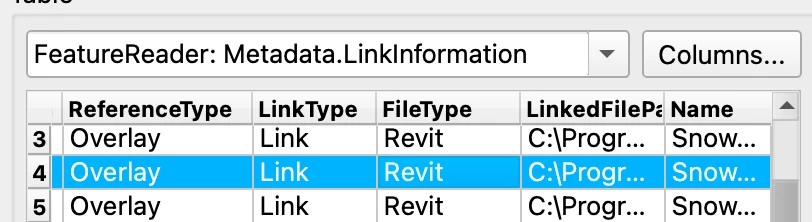
Now, this will read in the whole rvt so if you just want the paths to the linked files the feature type you specifically want to specify in the features types to read is called “Metadata.LinkInformation”. It will provide features like in the screenshot below with file names and paths. This information of the paths can be used to download or read in those files separately. (In my example these linked files happen to be local, but they could be anywhere depending on how they were created)

Table View of the Records with Links

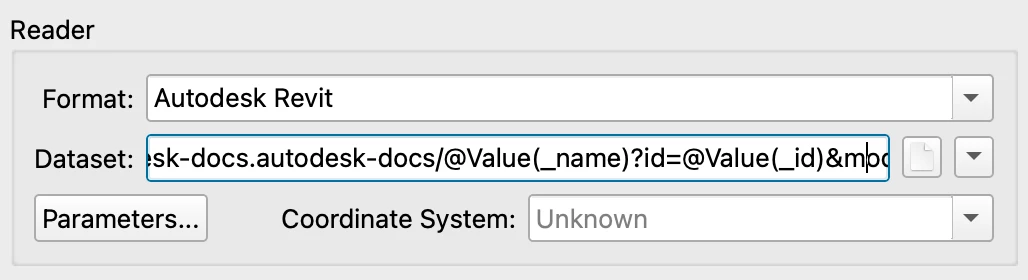
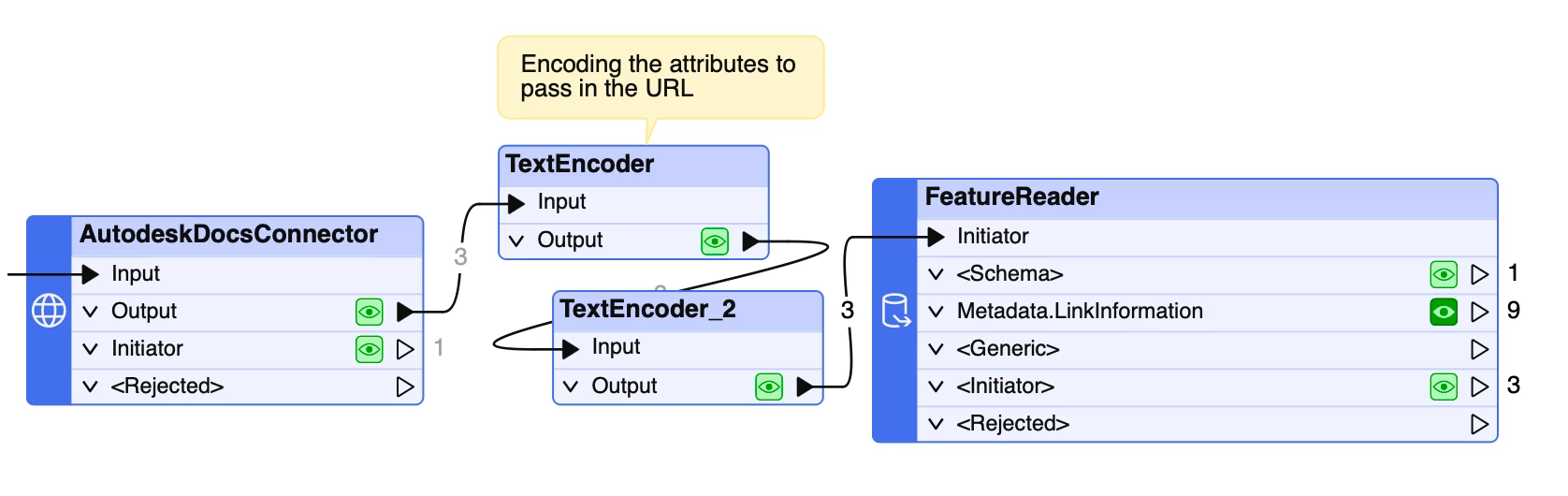
The existing workflow you have would turn into something like this below. I also encoded the name & ID attributes to fit into the file path of the FeatureReader as attributes.

Revit FeatureReader File Path


Hopefully this helps you find your associated linked files! Let us know if this worked for you or if you have further questions.