





Happy Friday, everyone! We’re glad you’re back for another Thank Goodness It’s FME. This week, Jeremy shows us how to give your MCP client a promotion from “helpful advisor” to “hands-on teammate” by updating a database with an FME MCP tool.
AI assistants are great at answering questions, but what if they could roll up their sleeves and actually get things done? FME Flow’s MCP Server capabilities let you build custom servers that expose your data workflows as callable MCP tools. Each tool is linked to a specific workspace published to FME Flow, giving your MCP client secure, controlled access to those workflows.
You may already have seen how to return text or images from an FME MCP tool, but MCP can do more. This article shows how to use it to update a SQLite database.
We’ll use the Airports Operations MCP Server. For instructions on creating it, see Returning Text Content from an FME MCP Tool.
The process uses two workspaces:
- Update Gate Status: Updates a row in the SQLite database and relays the result back to the MCP client.
- Reset Gate Data: Restores the table from a backup so any changes can be rolled back.
Workspace 1: Updating the SQLite Database
This workspace takes two user parameters, GATE_ID and STATUS, which specify the gate to change and its new status. It then reads the current data with a FeatureReader, isolates the requested gate with a Tester, and updates the status and timestamp with an AttributeManager. Finally, an AttributeCreator builds a message that the MCP client can read. The full series of transformers is shown below.

The workspace shown above exposes two user parameters:
- GATE_ID (Text)
- STATUS (Choice) (choices shown below)
- Not Full (not_full)
- Full (full)
- Overflowing (overflowing)
The MCP client sees these parameters when it discovers the tool, so give them clear names and descriptions.
Here is how the key transformers are configured:
- FeatureReader: Reads the table, called gates in this case. This is triggered by a Creator and ParameterFetcher to ensure Translation Parameter Values are prompted for when running this in FME Workbench.
- Tester: Isolates the requested gate with the following clause:
- TEST @Value(gate_id) = $(GATE_ID)
- AttributeManager: Updates the Status and timestamp field:
- Status: $(STATUS)
- Last Updated: @DateTimeNow()
- FeatureWriter: Attached to the output of the AttributeManager with these settings
- Feature Operation: Update
- Table Handling: Use Existing
- Row Selection Method: Match Columns
- Match Columns: gate_id
Together, these settings match the gate_id supplied by the user and update that row’s status and last_updated fields.
- AttributeCreator: Connected to the Passout output of the FeatureWriter, it creates a message for the MCP client:
- Output Attribute: Text
- Value: Gate ID: @Value(gate_id)<br>Terminal: @Value(terminal)<br>Status: @Value(status)<br>Last Updated: @Value(last_updated)
- MCP Writer: Connected to the AttributeCreator output with a Text Content feature type. This is what can be read by the MCP client.
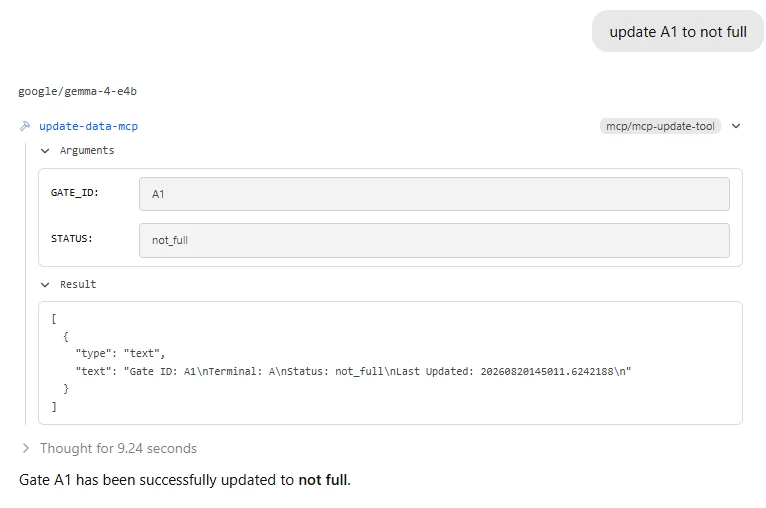
Once published to FME Flow and configured as an MCP tool (see Getting Started with FME Flow’s MCP Server), the MCP client can call the tool, submit arguments for GATE_ID and STATUS and receive a confirmation message showing the change.
Workspace 2: Resetting the Database
Sometimes you’ll want to undo the changes made by the previous tool and roll back to an earlier copy of the data. This workspace is much simpler: a direct connection between a reader and a writer.
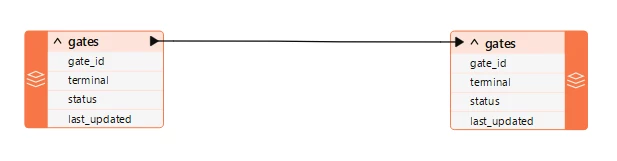
When you publish it to FME Flow, the backup and current SQLite databases will live in two different locations. In a real-world scenario, you might create a daily backup that can be restored if errors occur the following day.
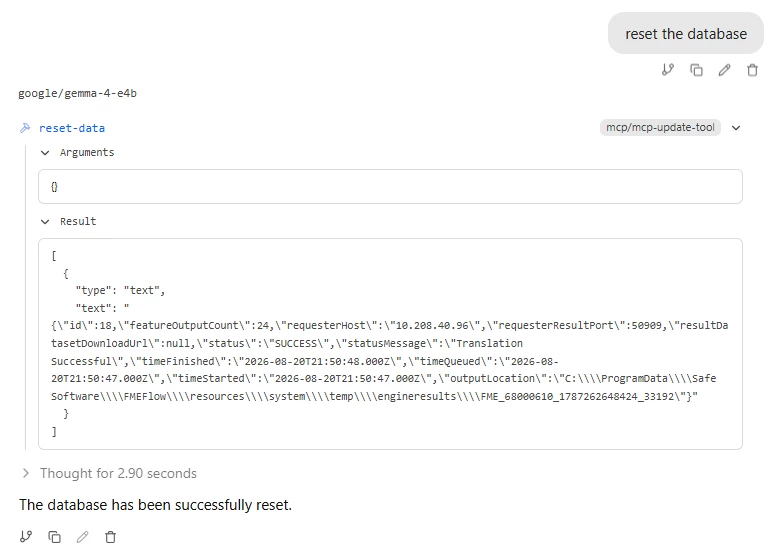
Note that this workspace has no MCP Writer. When it’s set up as an MCP tool, the MCP client will therefore see only the success message.
And there you have it! Thanks for reading! We hope this saved you a few clicks (and maybe a few headaches). See you next time, and happy FMEing!