





Thank Goodness It's FME — because nothing ruins a Friday faster than discovering an expired API token took your integration down with it. This week's workspace and post, brought to us by Zoe, hands that chore over to FME so you never have to think about it again.
All API tokens in FME Flow have an expiry date, so admins must keep track of the validity of their tokens and manually replace them once expired. This post will outline how to automate this process: creating new tokens, invalidating old ones, and sending the update to the relevant third-party service.
Since permissions cannot be configured through the API, a new user must be created with desired permissions for new tokens to inherit. This user is a template account - its password does not need to be known, and direct login is not intended.
For a sample workspace, please see the attachment at the end of this post!
Step-By-Step Instructions
1. Create the template account, assign permissions
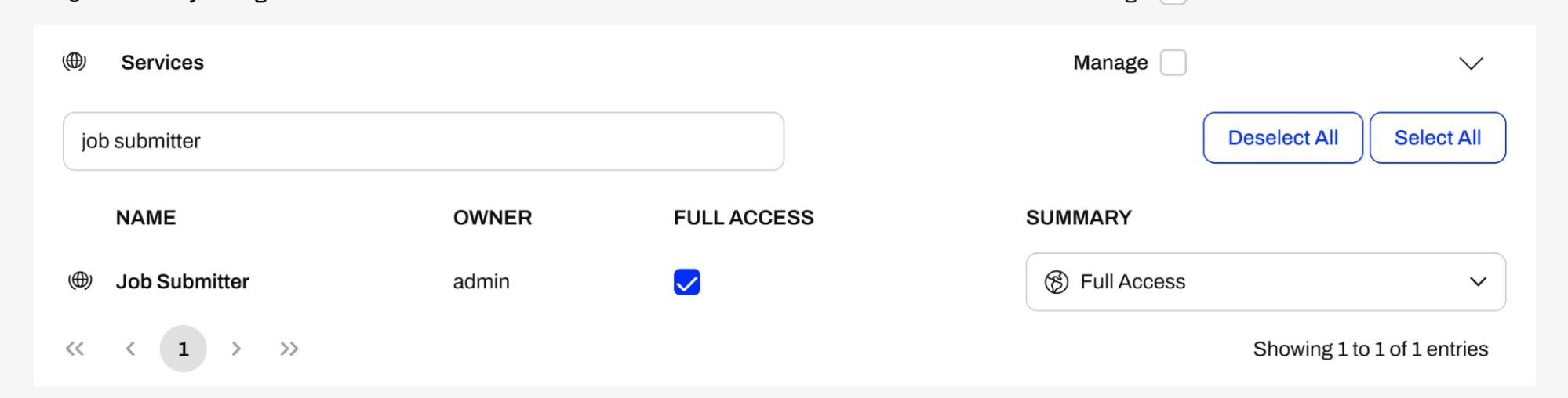
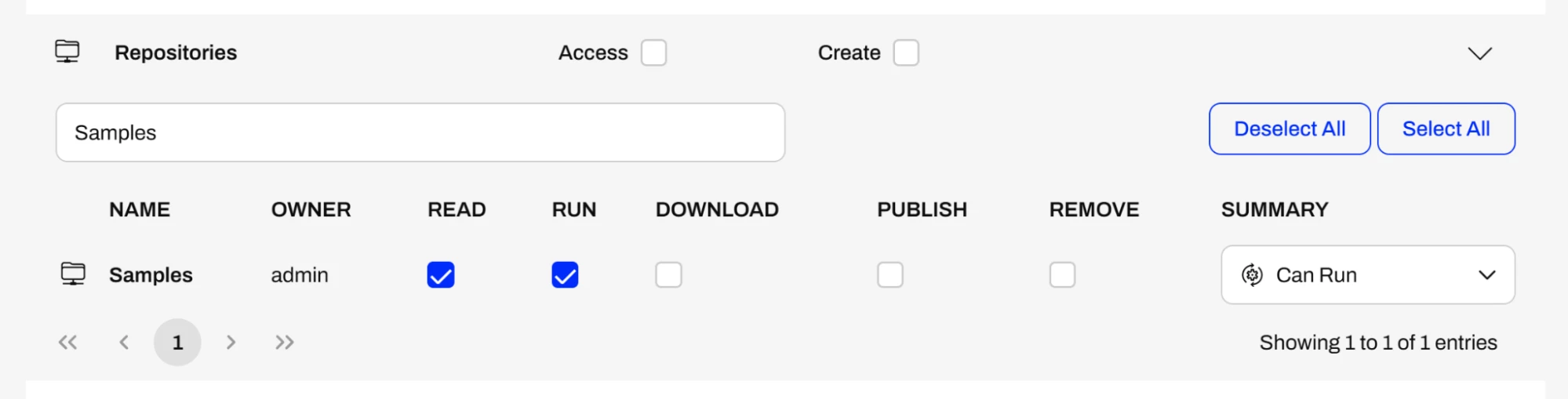
In the FME Flow Web UI, navigate to Users, create a new user, and assign them the minimum required permissions. For this example, the necessary permissions are:
- Services: Full Access to Job Submitter
- Repositories: Read and Run access to Samples
Give the user a complex password. This password doesn’t need to be recorded as there’s no need to log into the account directly, and it can be changed at any time.
2. Open GenerateToken.fmw
This workspace is used to generate a new token and invalidate the previous one. It assumes the user should only have one active token - multiple users should be created if multiple distinct tokens are required.

It has four main stages:
- Get all current tokens belonging to the user.
- Set a short expiry on all tokens currently enabled.
- Create a new token to replace the old one(s).
- Send this token to the 3rd party which authenticates with it.
Setting a short expiry instead of deleting old tokens ensures the third party always has access to a valid token.
3. Run the workspace in FME Form
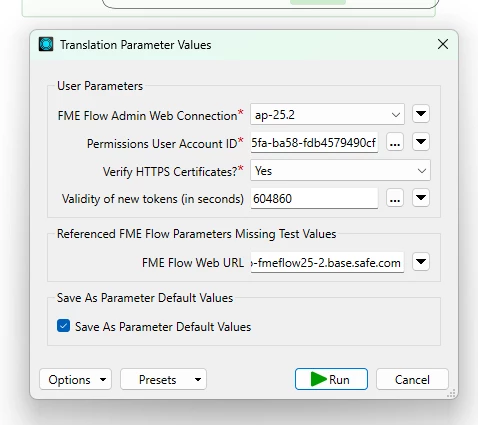
When prompted, set the User Parameters as follows:
- User Account ID: the UUID of the account created in step one. The easiest way to retrieve this is to go to User Management, open the user, and copy the ID from the URL. Alternatively, use the API.
- Token Validity: the validity period of new tokens - how long they should last before expiring.
- FME Flow Web Connection: a web connection with the User Management Manage permission.
- Verify HTTPS Certificates: should be Yes, unless your Flow instance is not configured for HTTPS with a valid certificate.
Set the FME Flow Parameter FME_SERVER_WEB_URL to the hostname of your Flow instance, with no trailing slash.
4. Verify the expected behavior
Open Token Management and view tokens of the newly created user:
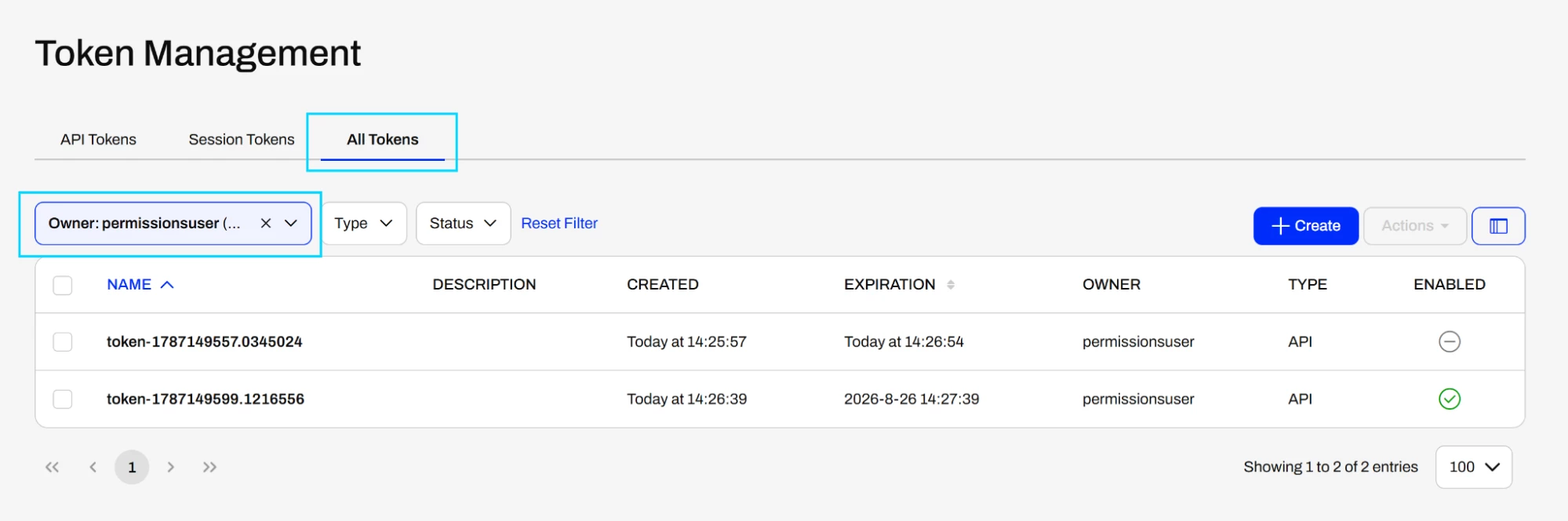
Run the workspace and refresh the Token Management page. The following should happen:
- Disabled tokens should be deleted.
- Enabled tokens should be set to expire in 15 seconds.
- A new token should be created with an expiry set per the workspace's User Parameters.
In FME Form, copy the new token from the AttributeManager:
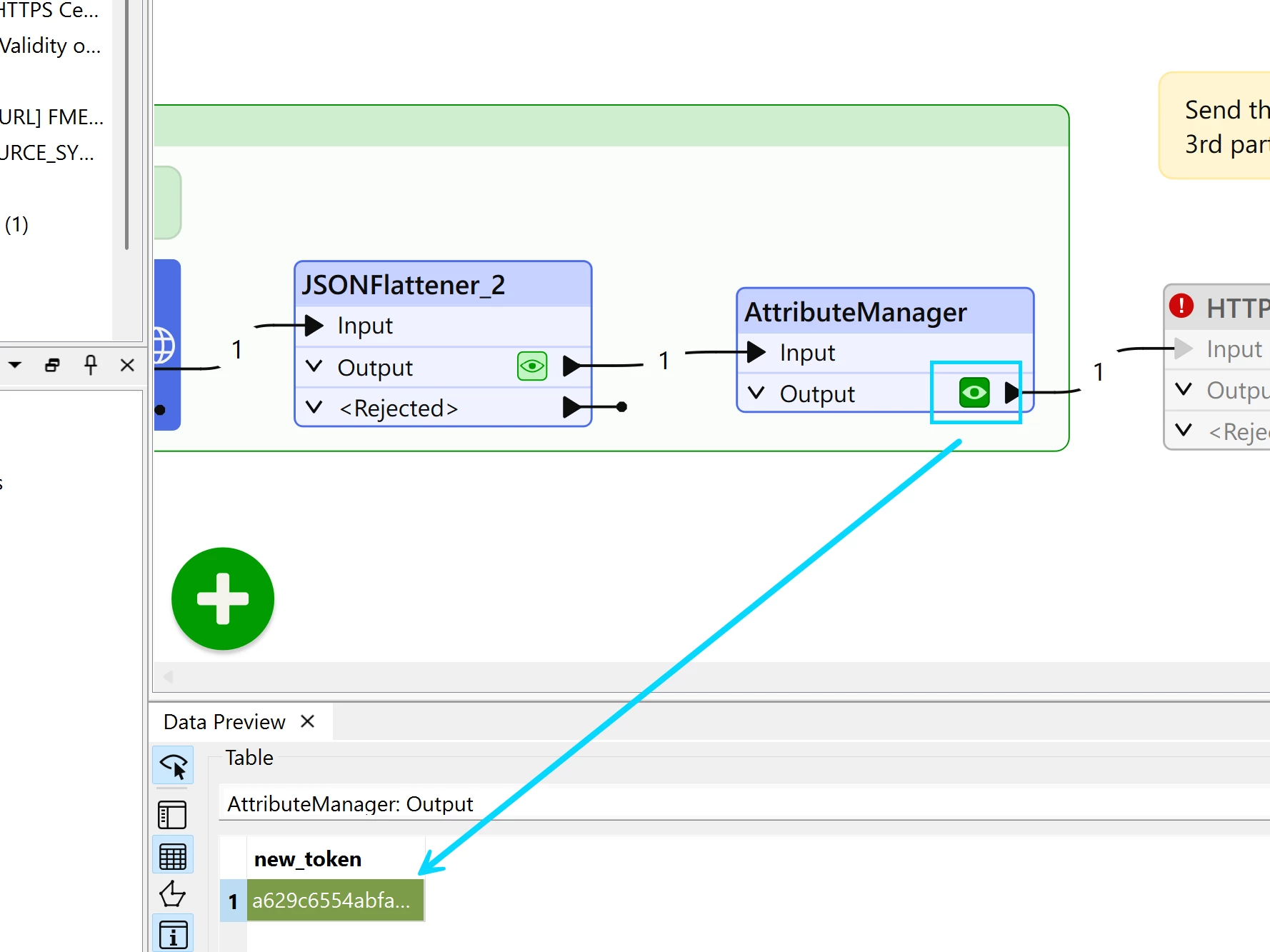
Check it authenticates correctly by opening the following in a browser: http(s)://<flow url>/fmejobsubmitter/Samples/austinApartments.fmw?token=<token>

5. Integrate with a 3rd party
Use the HTTPCaller to send this token to a third party via its API.
6. Schedule the workspace
To complete the automated process, create a Schedule to run the workspace and renew tokens. To ensure old tokens don't expire before a new one is created, configure the Schedule to trigger the workspace more frequently than the token expiry period.
That’s a wrap on another week of TGIF! Join us next week for more exciting content!