



Released

Tunnels: Jumping to the other connection point of a tunnel

Related products:FME Form
  • November 30, 2018
  • 8 replies
  • 66 views

wicki
Contributor
Forum|alt.badge.img+7

If one Point of the tunnel-connection is selected - you can see the connection line as a dashed line.

But if you want to change the view to the other side of the tunnel, you have to navigate by your own.

That's not fine for big workspaces. So a possibility to jump to the oher tunnelpoint in the view would be a nice feature :-)


8 replies

david_r
Celebrity
  • November 30, 2018

That's a great idea.


mik_w_thomsen
Contributor
Forum|alt.badge.img+8
  • Contributor
  • November 19, 2019

Maybe with a short cut, that wil jump to the end for the tunnel.


ekkischeffler
Contributor
Forum|alt.badge.img+7
  • Contributor
  • November 22, 2019

alc33
Contributor
Forum|alt.badge.img+13
  • Contributor
  • September 6, 2024

A little update.

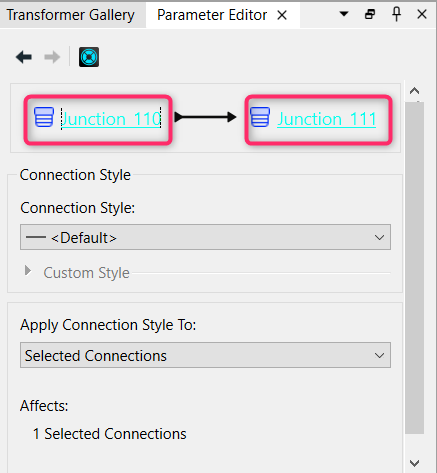
It’s possible to jump between the beginning and the end of the tunnel, just by clicking on the name of the transformer/junction after clinking on the tunnel (version 2024).


jennaatsafe
Safer
Forum|alt.badge.img+4
  • Safer
  • October 20, 2025
OpenGathering Interest

geomancer
Evangelist
Forum|alt.badge.img+60
  • Evangelist
  • October 21, 2025

You can use the <Arrow Right> and <Arrow Left> keys on your keyboard to move through the tunnel, and to follow any connection.


jennaatsafe
Safer
Forum|alt.badge.img+4
  • Safer
  • November 25, 2025

In 25.2 onward, we have added a ‘Pan’ upstream or downstream menu option, available when you right click on an object on canvas. This lists the next objects (yes, plural), upstream or downstream, so you can select the specific one to navigate to. Tunnels are just one of the objects supported, but you will see by name (i.e. Transformer1) any connected objects. 


jennaatsafe
Safer
Forum|alt.badge.img+4
  • Safer
  • November 25, 2025
Gathering InterestReleased