Hi all, we are on Flow 2025.2 and we use Geometry Parameter for quite a few ws apps. Now we are living with the bug FMEFLOW-26285
Changes to the default basemap of a geometry user parameter under the Parameter Defaults when creating/editing a Workspace app do not get applied to the Workspace app. Users accessing the workspace app will see that the default basemap is unchanged.
Any tips for a workaround? Can one change the default using javascript in the webpage possibly?
Best answer by zoe.forbes
Hi @nordpil, sorry for the delayed response. The workaround is below, but please note:
This isn’t officially supported and might have unintended consequences. To reduce the risk, make a copy of the edited file (to restore if anything goes wrong), and make a backup of your Flow instance.
This workaround won’t persist when Flow is upgraded or reinstalled.
As far as I can tell, this changes the default basemap everywhere across the Flow instance.
Here’s the workaround:
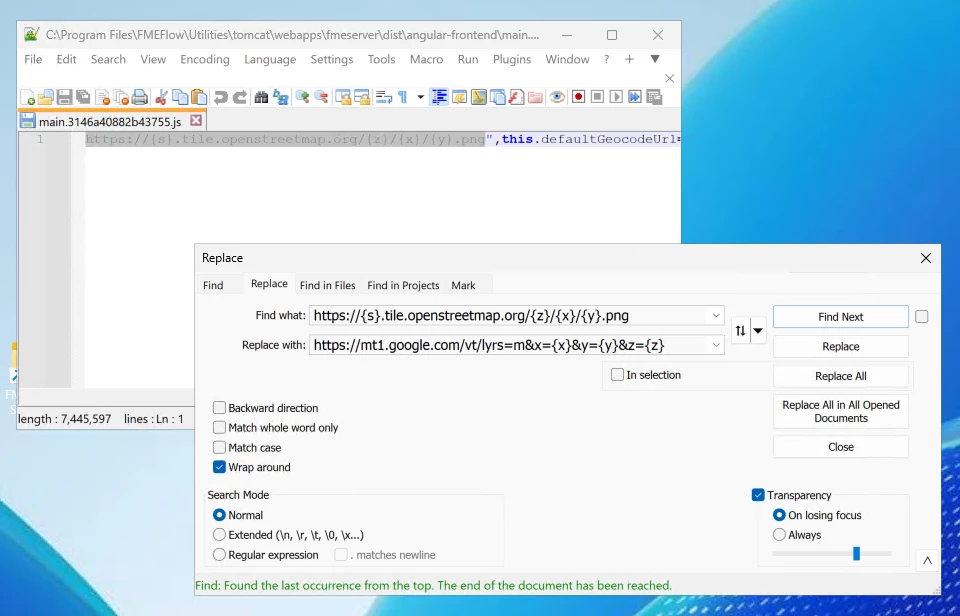
On the machine hosting Flow, navigate to <Install Dir>/Utilities/tomcat/webapps/fmeserver/dist/angular-frontend/. <Install Dir> is set during installation and is C:/Program Files/FMEFlow on Windows by default.
Find a file with name main.*.js. For example, this could be main.643h2jw8830y1jea.js. Open the file with admin permissions to allow editing.
Find and replace as follows. There should be only 1 match:
Save the .js file. Verify the changes have taken effect. If they haven’t, first try clear the cache, then try restart Flow.
Please let me know if you have any questions about this!
This post is closed to further activity.
It may be an old question, an answered question, an implemented idea, or a notification-only post.
Please check post dates before relying on any information in a question or answer.
For follow-up or related questions, please post a new question or idea.
If there is a genuine update to be made, please contact us and request that the post is reopened.
I had a look into this, and unfortunately a fix isn’t currently on our roadmap. I’ve updated our internal ticket though to let the relevant Product Manager know the impact this is having. Our best supported workaround remains asking users to update the basemap URL manually, each time the app is opened.
I had a look into this myself though, and did find a unsupported workaround which updates the default basemap globally across FME Flow. This means changes would apply to every Workspace App, the Run Workspace page, and anywhere else Geometry User Parameters appear.
The workaround requires changing Flow configuration files and is unsupported because small mistakes can lead to components of Flow breaking, requiring a full backup/restore to fix. It would also need to be reinstated every time Flow is updated.
Hi @nordpil, sorry for the delayed response. The workaround is below, but please note:
This isn’t officially supported and might have unintended consequences. To reduce the risk, make a copy of the edited file (to restore if anything goes wrong), and make a backup of your Flow instance.
This workaround won’t persist when Flow is upgraded or reinstalled.
As far as I can tell, this changes the default basemap everywhere across the Flow instance.
Here’s the workaround:
On the machine hosting Flow, navigate to <Install Dir>/Utilities/tomcat/webapps/fmeserver/dist/angular-frontend/. <Install Dir> is set during installation and is C:/Program Files/FMEFlow on Windows by default.
Find a file with name main.*.js. For example, this could be main.643h2jw8830y1jea.js. Open the file with admin permissions to allow editing.
Find and replace as follows. There should be only 1 match:
I experimented a bit and found that if I add this to the javascript console (before the geometry modal is shown) it seems to work. Unfortunately the definition of Flow apps does not allow for <script> tags…
(function waitForLeaflet() { if (!window.L || !L.tileLayer) { // Leaflet not ready yet → try again setTimeout(waitForLeaflet, 50); return; }