



Question

Transformation of LOD2 3D-Multipatch (fGDB) to CityGML

  • June 9, 2026
  • 6 replies
  • 64 views

melri
Contributor
Forum|alt.badge.img+1

Hi,

I’m currently struggling to figure out how to convert a LOD2 3D-Multipatch from a FileGDB into CityGML. I do currently not have a program avail

able to open or edit CityGML files, but it might be important at a later stage to be able to convert the data back into CityGML. Is it generally possible to convert any multipatch into a CityGML file at a later stage, or is important information lost in the process?

How do I ensure that a distinction is made between Wall, Roof, Ground, and Closure Surface? Or is it all simply classified as Building?

I've already looked at the website Writing CityGML from FME, but unfortunately, I still don't know how to proceed. How do I know which ‘citygml_lod_name’ value to use? If multiple values ​​yield a result, should I use all of them parallel?

I would be grateful for any tips to help me understand this better…

Thank you!


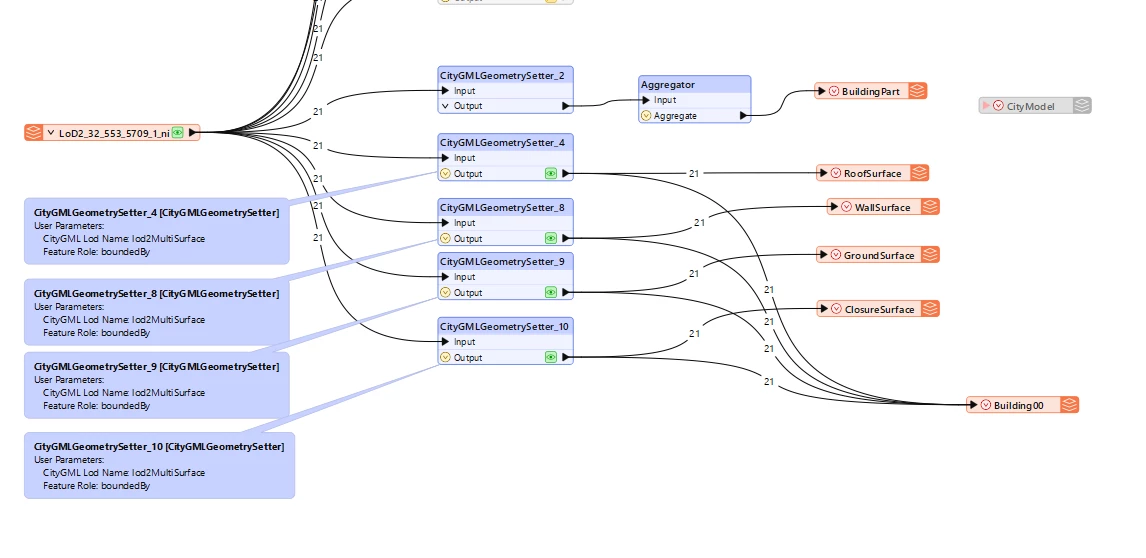
My first attempt of a workbench...
 

6 replies

daveatsafe
Safer
Forum|alt.badge.img+23
  • Safer
  • June 10, 2026

Hi ​@melri,

If you would like to share your source data, I would be happy to create an annotated workspace to convert it to CityGML for you. This is the best way to learn how to create CityGML files, which can be a little complex. If you don’t want to share your data publicly, you can send me a download link at dave.campanas@safe.com.


melri
Contributor
Forum|alt.badge.img+1
  • Author
  • Contributor
  • June 11, 2026

Hi daveatsafe,

thank you so much for offering to help! I just sent you a download link to your mailaddress.


daveatsafe
Safer
Forum|alt.badge.img+23
  • Safer
  • June 24, 2026

Hi ​@melri 

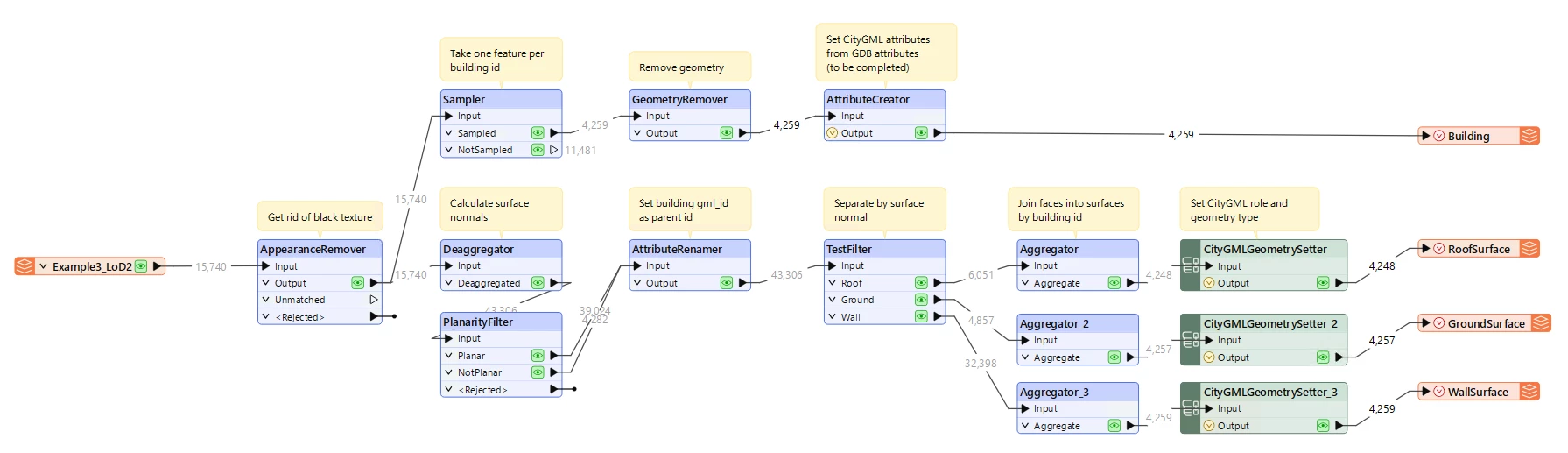
Please try the attached workspace. It uses the surface normals generated by the PlanarityFilter transformer to distinguish between Roof (normal Z component positive), Ground (normal Z component negative) and Wall (normal Z component 0) surfaces.


melri
Contributor
Forum|alt.badge.img+1
  • Author
  • Contributor
  • July 1, 2026

Hi ​@daveatsafe,

many thanks! The workbench helped me a lot understandig how to distinguish between Roof, Wall and Ground Surfaces.

What I don’t quite grasp yet is how to correctly assign the attributes. In another CityGML dataset, I noticed that the address, for instance, is a separate table linked to the building. The same with the attribute roof type which is linked to the building, or at least, I guess so. How do I attach the individual attributes to the specific boundary surfaces, or building table etc.? Or is that not actually feasible to implement?

Thank you!


daveatsafe
Safer
Forum|alt.badge.img+23
  • Safer
  • July 2, 2026

Hi ​@melri,

When adding the CityGML writer in the workspace, set the Add Feature Types option to ‘Import from Dataset’. When the Import Writer Feature Types dialog comes up, leave the Dataset blank, then click OK. This will import all the possible CityGML feature types with their normal attributes already defined on them. Then you just need to ensure that you set a value on the features within the workspace using an AttributeManager to populate them when writing.

If you want to add your own attributes, you can double-click on the output feature type and modify the User Attributes to include your custom attributes.

The CityGML format is hierarchical, but in FME we are working with it as a relational model, setting the hierarchy links using gml_id and gml_parent_id attributes to establish the hierarchy. So some complex attributes like Address are modelled in FME as feature types. Importing all the feature types when adding a writer will show you all the possibilities for the output.

For more information on the CityGML file structure, please see the following documentation: https://www.ogc.org/standards/citygml/. I find I must often refer to this information when creating more complex CityGML files.


melri
Contributor
Forum|alt.badge.img+1
  • Author
  • Contributor
  • July 6, 2026

Hi ​@daveatsafe

thank you very much for all the information and instructions!