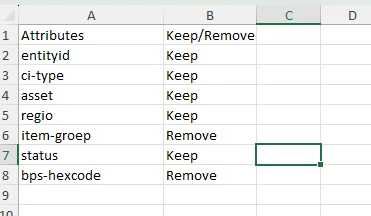
Dear FME colleagues, I am working on a workbench that needs to read an Excel file and keep (write out) only those attributes listed in a second Excel file. The workbench must be fully dynamic; this means that after publication and scheduling on FME Flow, the user only needs to maintain the second Excel file to generate the correct output. To do this, the user simply needs to indicate in that Excel file which attributes should be kept and which should be removed. I haven't quite managed to configure this yet!Can anyone point me in the right direction? I’ve tried using the SchemaMapper and AttributeManager, as suggested in other articles, but I haven't quite succeeded.Below are screenshots of both Excel files: the first shows a portion of the data (128 attributes in total), and the second image is an example of the attributes that need to be kept or removed.
Best answer by veronikaatsafe
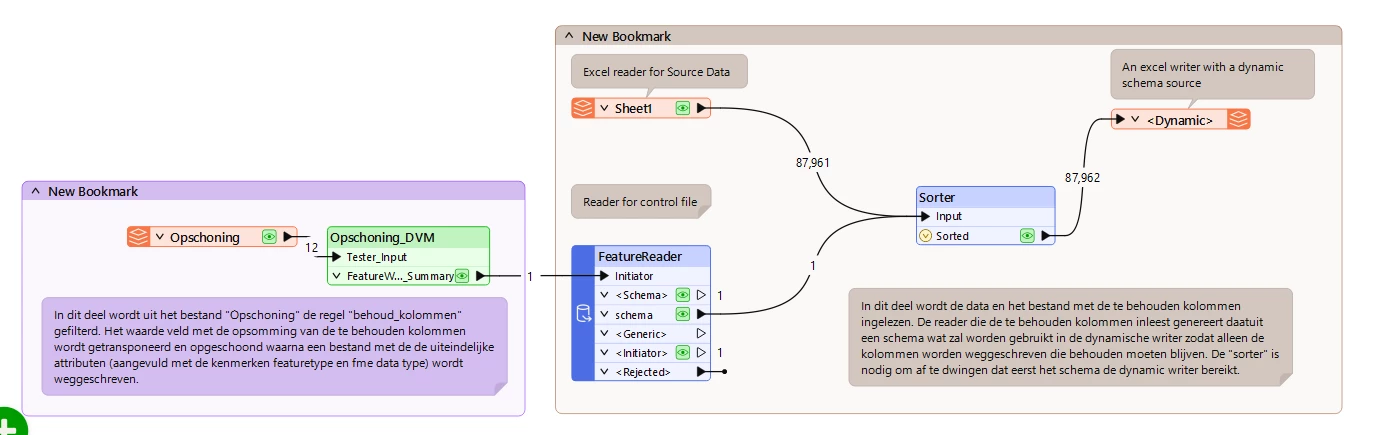
Hi pschout, I wanted to suggest this workflow for your question: instead of defining every attribute as "remove/keep," you could create a control file containing just the attributes you want to keep. When you write the data to a new Excel file, the output will only include the attributes defined by the control file's schema. The control file is read as a schema template using a FeatureReader. I put together a workspace with some sample data.
Attached:
DynamicAttributeFilter.fmwt (the workspace template) - created in FME 2026.2, but let me know which version you are using and I can adjust the workspace.
SourceData.xlsx (sample data, same format as your file, already inside the template)
ApprovedAttributes_SchemaTemplate.xlsx (the control file: same column headers as SourceData, minus the ones you don't want kept. Row 2 is an example row only, used so FME can detect each column's data type.)
Hi pschout, I wanted to suggest this workflow for your question: instead of defining every attribute as "remove/keep," you could create a control file containing just the attributes you want to keep. When you write the data to a new Excel file, the output will only include the attributes defined by the control file's schema. The control file is read as a schema template using a FeatureReader. I put together a workspace with some sample data.
Attached:
DynamicAttributeFilter.fmwt (the workspace template) - created in FME 2026.2, but let me know which version you are using and I can adjust the workspace.
SourceData.xlsx (sample data, same format as your file, already inside the template)
ApprovedAttributes_SchemaTemplate.xlsx (the control file: same column headers as SourceData, minus the ones you don't want kept. Row 2 is an example row only, used so FME can detect each column's data type.)
Use a FeatureReader for the data file because it can output both data and schema features within one transformer. Then you modify the schema feature by only keeping the Keep attributes and creating a new schema feature. This new schema feature is then sent to the writer along with the original data from the Data File. The writer’s schema definition must be set to Dynamic since the output schema is variable.
Attached is an example workspace that demonstrates this workflow. I hope it helps.
Hi veronikaatsafe and debbiatsafe,Thanks to both of you! With your examples I managed to create a working workspace. We are currently still using FME 2025. Your examples were built in the 2026 version, but I still managed to extract the necessary information!