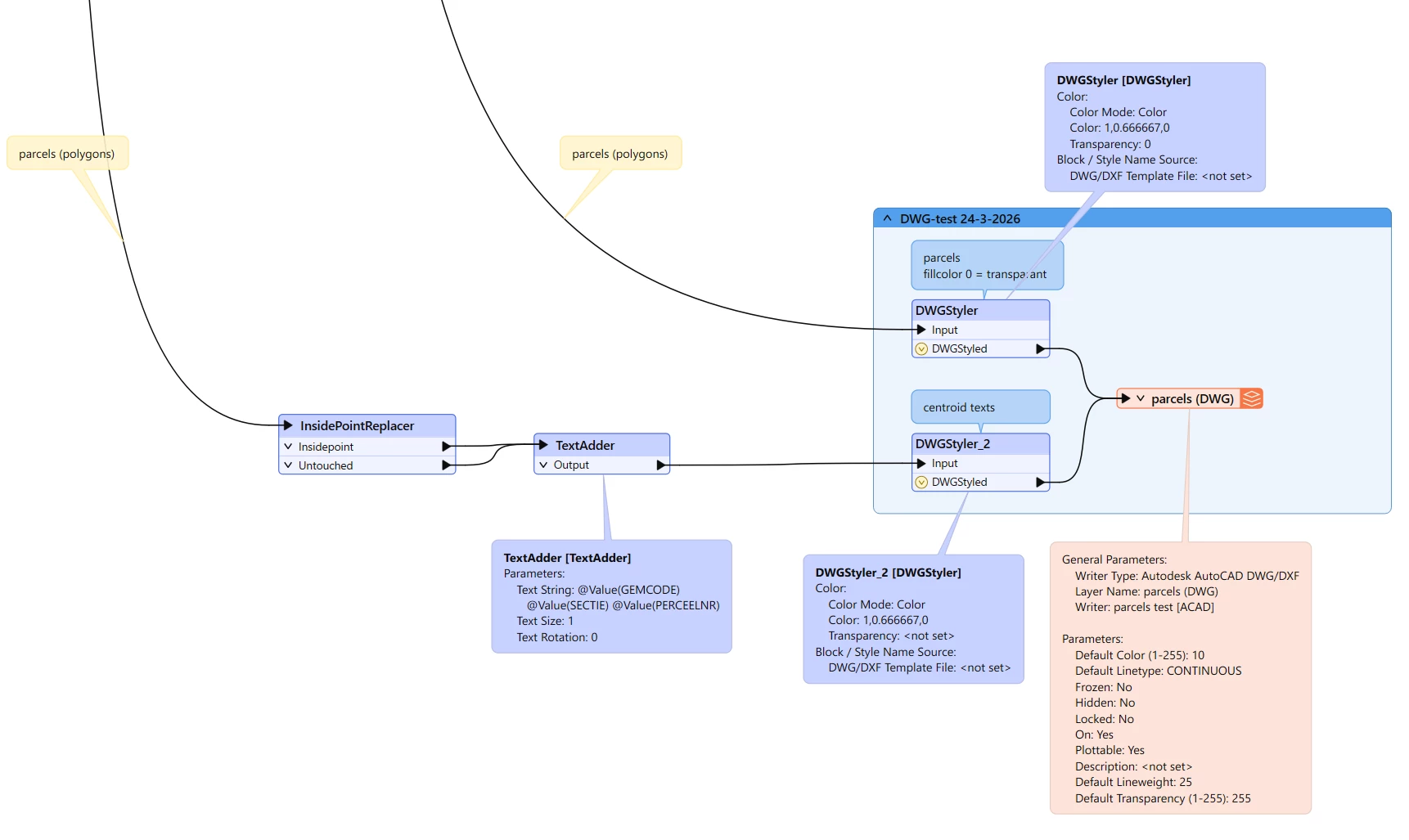
I'm quite new to CAD. I have an Oracle database with parcels. I would like to convert these to DGN (for users in Microstation) and DWG (for users in Autocad). The parcelnumbers should be a text field as the centroid of the parcels. I have only a licence for Microstation to test the DWG's over there before I can sent them to the users using Autocad.
I can create and convert the parcels and texts to DGN. These work fine.
When converting the parcels to DWG I can see the number of features (elements) in Microstation, but not the geometry itself.
What should I do get the geometry right?
Best answer by k_lander
A couple things I can think of:
The DWGs that FME is writing likely have their units set to “Feet”. You could check this by opening the file directly with MicroStation and inspecting the Working Units under File > Settings > File > Design File Settings > Working Units. This is based on the seed/template file that the output file is created with, and all of the ones that FME comes with are set to “Feet”, at least in my 2025 installation (they are located in <FME install dir>/autocad/) For me on Windows it’s C:\Program Files\FME\autocad
MicroStation may be picking up on this, even thought you have a Metric projection set, and might be scaling the data. Maybe experiment with using “Concident” and “Coincident World” as your attachment methods in MicroStation and see if one of them puts the data in the right spot. Your AutoCAD users may not even notice this discrepancy unless they check on the drawing properties. Of course, we want the units to be set correctly :)
The only way I know of getting FME to write a DWG with units set to Metres is to tell the writer to use a seed file that has already had its units set that way with the Template File parameter. I normally copy one of the FME ones, set it, and save it somewhere else. Since you don’t have AutoCAD, this is an issue. You could have someone on your end send you one, but I’ve attached one that I just saved out. (use at your own risk of course, but I just opened FME’s default2013.dwg, set the units to metric, and saved it out)
Hope one of those things helps!
EDIT: Also, I totally forgot about the Insertion Scale Units parameter in the ACAD writer. Setting this to Meters might also do the trick (not sure), but the file’s Drawing units will still be set to “Feet” without a metric seed file.
This post is closed to further activity.
It may be an old question, an answered question, an implemented idea, or a notification-only post.
Please check post dates before relying on any information in a question or answer.
For follow-up or related questions, please post a new question or idea.
If there is a genuine update to be made, please contact us and request that the post is reopened.
I think the issue may be that you are setting transparency to 0 in the DWGStyler for the parcel polygons, that will make the polygon line become completely transparent. If your goal is to have no polygon fill, you don’t need to worry about that with DWGs, they won’t have a fill unless you also use a hatch pattern within the parcels (that’s another option in the DWGStyler under the Areas checkbox, if you did happen to want a fill)
That said, you should also be able to check if the parcel polygons in your DWGs are actually there even if they’re invisible in MicroStation. If you hover the cursor over where one of your parcel boundaries should be, and if it is indeed there, the boundary should highlight while the cursor is touching it.
Thanks. It seems that it is a different issue: the coordinate system is not applied as the lines turned out to be in the ocean.
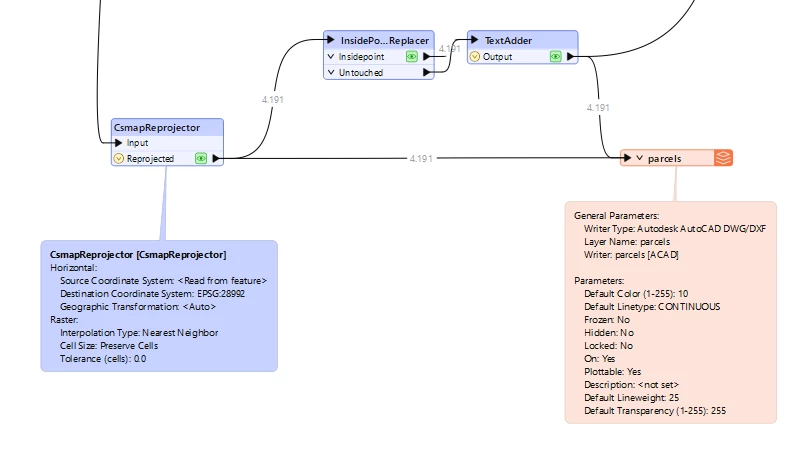
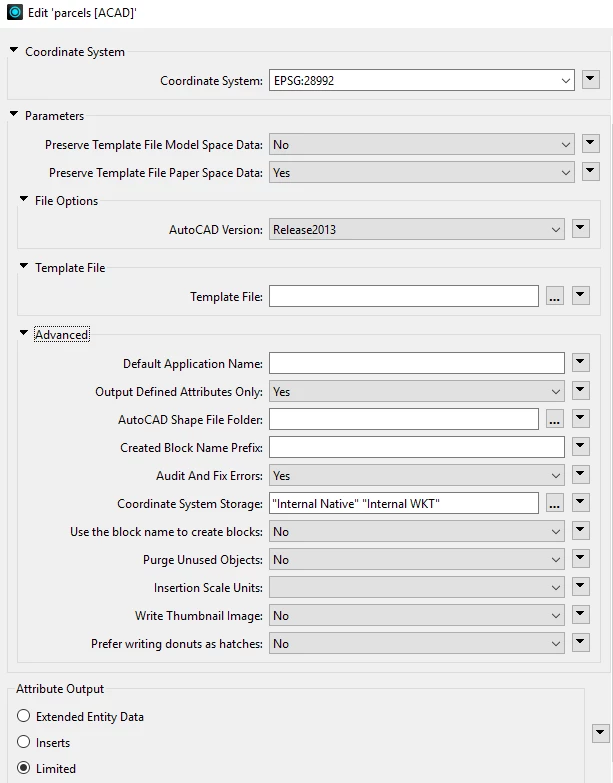
I tried reprojecting it (origin is Netherlands-RDNew-2008, should be EPSG:28992) and adding the Coordinate System Storage-options (as mentioned here), but to no avail: In Microstation when attaching the layer as a reference it keeps showing up in the ocean. When opening it in FME it shows up at the right location however.
So the main question now is: how to retain the coordinate system and show it in Microstation?
The DWGs that FME is writing likely have their units set to “Feet”. You could check this by opening the file directly with MicroStation and inspecting the Working Units under File > Settings > File > Design File Settings > Working Units. This is based on the seed/template file that the output file is created with, and all of the ones that FME comes with are set to “Feet”, at least in my 2025 installation (they are located in <FME install dir>/autocad/) For me on Windows it’s C:\Program Files\FME\autocad
MicroStation may be picking up on this, even thought you have a Metric projection set, and might be scaling the data. Maybe experiment with using “Concident” and “Coincident World” as your attachment methods in MicroStation and see if one of them puts the data in the right spot. Your AutoCAD users may not even notice this discrepancy unless they check on the drawing properties. Of course, we want the units to be set correctly :)
The only way I know of getting FME to write a DWG with units set to Metres is to tell the writer to use a seed file that has already had its units set that way with the Template File parameter. I normally copy one of the FME ones, set it, and save it somewhere else. Since you don’t have AutoCAD, this is an issue. You could have someone on your end send you one, but I’ve attached one that I just saved out. (use at your own risk of course, but I just opened FME’s default2013.dwg, set the units to metric, and saved it out)
Hope one of those things helps!
EDIT: Also, I totally forgot about the Insertion Scale Units parameter in the ACAD writer. Setting this to Meters might also do the trick (not sure), but the file’s Drawing units will still be set to “Feet” without a metric seed file.