



Solved

Exporting Attribute Pivoter to Google Sheets

  • February 18, 2026
  • 7 replies
  • 96 views

kylewicks
Contributor
Forum|alt.badge.img+4

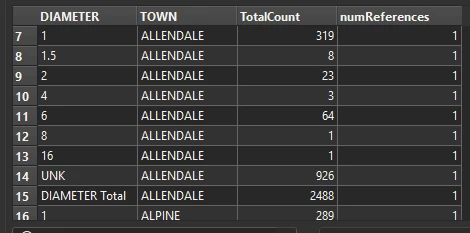
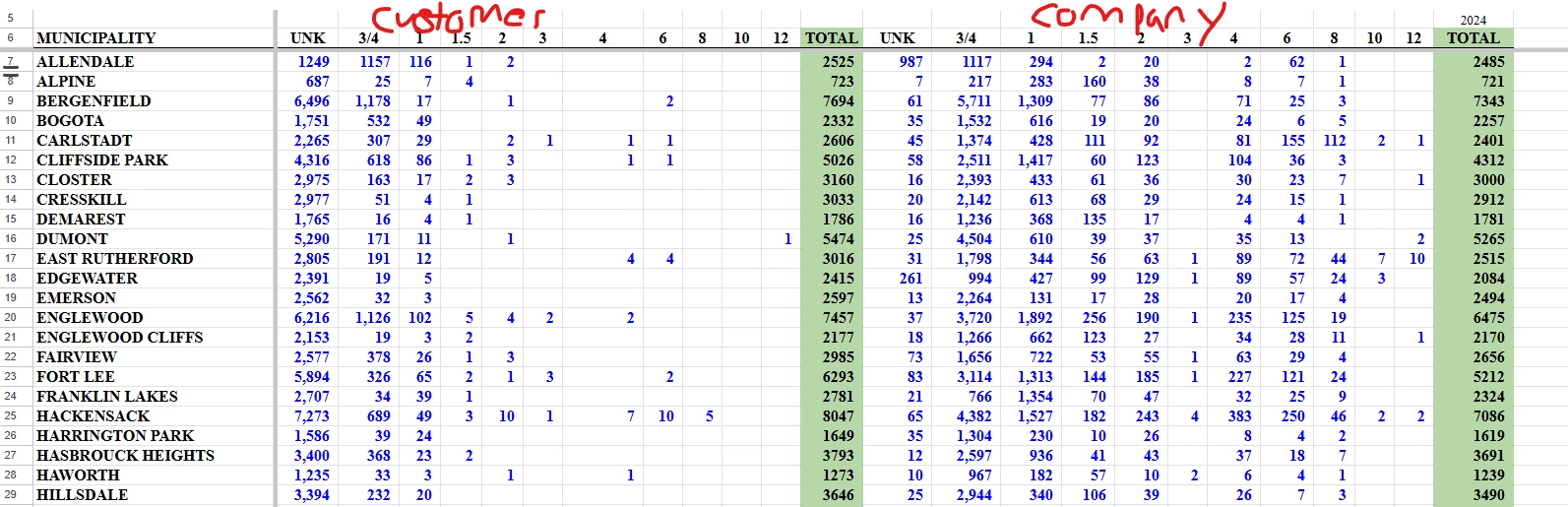
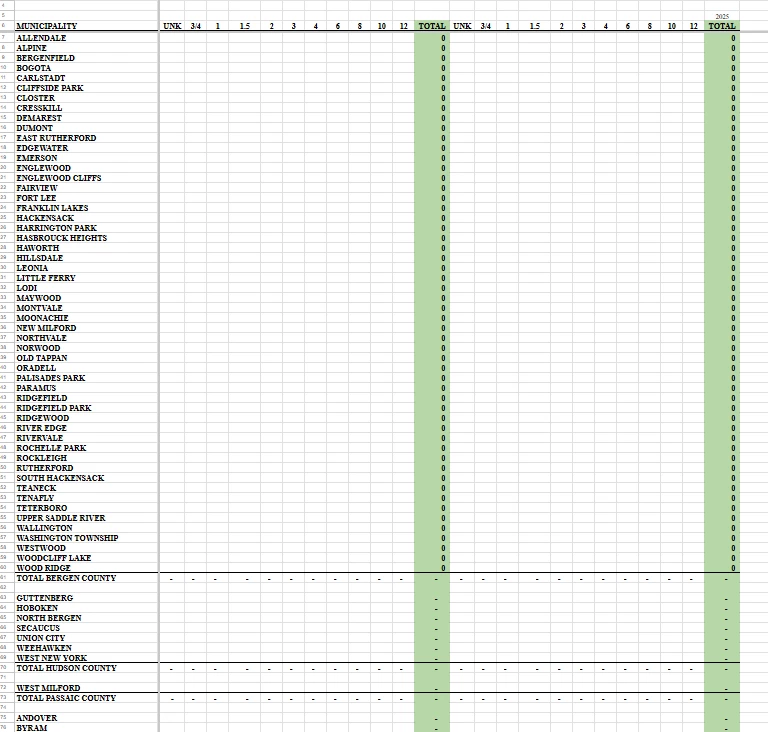
I’m working on trying to automate some of my company’s reporting, like the one partially shown in this screenshot. So far, I am able to get pretty much most of this information through to the Attribute Pivoter, but I am pretty new to getting this information properly into a Google Sheet. I have the Customer side (left side) and Company side (right side) going through separate channels because they’re from different layers...and I’m starting to wonder if it’s even possible to populate this information in this way from Attribute Pivoter or if I should just switch to separate tabs within the Google Sheet. Second screenshot is what the attribute pivoter summary results look like for the right hand side which is essentially what I want...just not broken down the way I want.


Best answer by waterbeemds

Hi, 

I have uploaded 2 files which shows my workproces. The zip contains the workspace and the excel file is an example of allendale with the information above. You need to set the path to the test_comm file yourself. 
This example requires FME 2025.1.2 build 25630 or better

Going futher from you next screenshot, after using the FeatureMerger you need to use the Merged port and then expose them. In my example the diameter fields are made but not exposed. This is due to them being a variable field name. Without exposing them, you will not see them in the table, although they still exist on the object. 

What I ended up with: 
 

Good luck!


7 replies

waterbeemds
Contributor
Forum|alt.badge.img+8
  • Contributor
  • February 23, 2026

Hi ​@kylewicks,

There is a way to proceed from you post AttributePivoter point. Assuming the data is as shown in the second screenshot:

  • Place a AttributeCreator. Have it make an attribute based on the attribute value of the second column. (I am going to assume there are no weird values in the second column), with the value of the third column
  • Sample the first row of each municipality with a Sampler. (Group processing on the first column, Sampling type set to First N features. Leave Sampling rate at 1)
  • Follow it up with a FeatureMerger. Connect the Sampled port of the Sampler with the Requestor and the NotSampled port with the Supplier. In the settings of the FeatureMerger, Join on the First colum and make sure Process Duplicate Suppliers is checked.
  • You should now have a single row per municipality with the correct columns. 
  • Expose the columns with a AttributeExposer for better visibility and operational options.
  • Assume this is one of the datasets (Customer or Company), do the same for the other dataset.
  • Merge both datasets with a FeatureMerger or FeatureJoiner and fix attribute names with a AttributeManager.
  • After that you can start writing. It might be possible to use an empty template as shown in the first screenshot, but that depends on the format.

There might be another way to do this but that requires us knowing how the data looks like pre pivoting.

Good luck!


kylewicks
Contributor
Forum|alt.badge.img+4
  • Author
  • Contributor
  • February 23, 2026

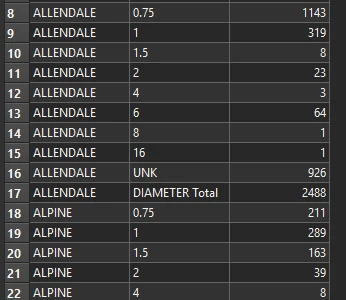
Hey! Thanks for the response...I tried that process and it still isn’t working. This is what shows after the feature merger...and for some reason all 0.75 diameter values are gone.


kylewicks
Contributor
Forum|alt.badge.img+4
  • Author
  • Contributor
  • February 23, 2026

To add further context, the first column in the second screenshot of the original post the columns are TOWN, DIAMETER, and TOTAL.


Is there any other information I can provide that would help?


waterbeemds
Contributor
Forum|alt.badge.img+8
  • Contributor
  • Best Answer
  • February 24, 2026

Hi, 

I have uploaded 2 files which shows my workproces. The zip contains the workspace and the excel file is an example of allendale with the information above. You need to set the path to the test_comm file yourself. 
This example requires FME 2025.1.2 build 25630 or better

Going futher from you next screenshot, after using the FeatureMerger you need to use the Merged port and then expose them. In my example the diameter fields are made but not exposed. This is due to them being a variable field name. Without exposing them, you will not see them in the table, although they still exist on the object. 

What I ended up with: 
 

Good luck!


kylewicks
Contributor
Forum|alt.badge.img+4
  • Author
  • Contributor
  • February 24, 2026

Thank you so much for this. That ended up working, I’ve never used the attribute exposer before, but I think that was key to getting it to work. I really appreciate you taking the time to help me out!

Hate to ask you another question, but do you think it’s possible to get both sets of data (customer + company) into the same spreadsheet using template formatting? I have a feeling it would be very annoying or difficult…please let me know if you have suggestions. Otherwise, I may just change it to be separate tabs for each.


waterbeemds
Contributor
Forum|alt.badge.img+8
  • Contributor
  • February 24, 2026

Hi,

Good to know it worked. As for you next question, there are some steps you can take. But I must preface this with the knowledge that I haven't written to google sheets yet so this purely what is written in the documentation and what I know of from Excel format. Here's what you can try:

  • Make a template file like you have in the first screenshot in Google Sheets, and make a backup. 
  • In FME, rename UNK, 0.75, 1, 1.5, 2, 3, 4, 6, etc. of the customer table to customer_UNK, customer_0.75, etc. You can do this with the BulkAttributeRenamer. Do not rename TOWN. 
  • Do the same for the company table by bulk renaming them to company_UNK, company_0,75, etc. Do not rename TOWN.
  • Dont worry about the attribute names as we are not going to write them
  • Feature merge the company and customer datasets with a FeatureMerger or FeatureJoiner based on TOWN. This should place both tables next to eachother like you last screenshot.
    Order it futher with a AttributeManager
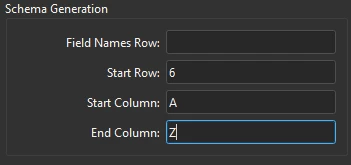
  • Add the Google sheets Writer. You will have to fill in the connection and Spreadsheet Name/URL yourself. However Schema Generation should be something like this: 
     
  • You will need to test this yourself, but I think it will start writing the data from row 6 and will not write down the attribute names. 

  • In the feature type parameters, make sure the following is set:

    • Feature Operation: Insert

    • Worksheet handeling: Truncate Existing (most likely, but try this out)


I hope this works. I can't edit the workspace as I don't have a Google Sheets webconnection at hand.
Good luck!


kylewicks
Contributor
Forum|alt.badge.img+4
  • Author
  • Contributor
  • February 25, 2026

Thank you so much, this all worked. I really appreciate it.

Now I’m trying to figure out how to add another section on the page for a separate business unit’s data that’s essentially the same set up, but comes from a different gdb.