



Question

SharepointOnlineConnector with userdefined url

  • December 3, 2025
  • 3 replies
  • 79 views

tva
Contributor
Forum|alt.badge.img+13

Hi all,

Got a strange situation with the SharePointOnlineConnector (both in FME Form 2024 & 2025.2).

I want to upload a file towards a certain sharepointsite. In the GUI I can select my site: ‘https://mysharepoint.com/teams/teamA, my library and my Path. 


If I want to make my site dynamic, so File A needs to to go site from TeamA and File B needs to go to site from TeamB

I’m not able to do this. User Parameter does not work. Making the url like this: https://mysharepoint.com/teams/@teamValue does not work → Even for the File for TeamB it still refers to the site from TeamA (or whatever team I selected to create the workspace).

Even using the setup of getting the <HostURL>,<siteID>,<webId>  provided from attributes:
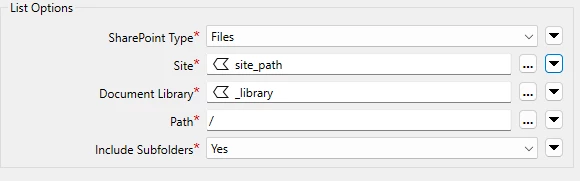
 

It still points towards the old setup and not a dynamic one.


Am I missing a certain step? the used Authentication account has rights towards the sharepoint (setup via this guideline: How to Create a SharePointOnlineConnector Single Tenant Web Connection – FME Support Center

3 replies

cshepard
Participant
Forum|alt.badge.img+5
  • Participant
  • December 3, 2025

SharePoint objects (sites, documents, lists, etc.) are identified by a unique id (GUID).

Under the hood, the SharePointOnlineConnector uses that id for the Site, Document Library, and Path parameters. To set them with attributes, use the id instead of the readable value shown in the GUI.

Find the id for each parameter by using the dropdown to select “Open Advanced Selection Editor” after you’ve made a selection. The resulting popup window will show the Display Name and Object Identifier.


tva
Contributor
Forum|alt.badge.img+13
  • Author
  • Contributor
  • December 3, 2025

SharePoint objects (sites, documents, lists, etc.) are identified by a unique id (GUID).

Under the hood, the SharePointOnlineConnector uses that id for the Site, Document Library, and Path parameters. To set them with attributes, use the id instead of the readable value shown in the GUI.

Find the id for each parameter by using the dropdown to select “Open Advanced Selection Editor” after you’ve made a selection. The resulting popup window will show the Display Name and Object Identifier.

Finding these ids is not difficult. Either via gui like you describe it, or using several sharepoint online connectors to get that info or using grapc api calls.


the problem is that of i setup the sharepoint online connector to teamA site and than same workspace runs for teamB, even if i provide all those ids for siteB it will still upload to teamA site...


jamatsafe
Safer
Forum|alt.badge.img+13
  • Safer
  • December 9, 2025

Hi ​@tva ,

One way to confirm the correct values are being passed into the SharePointOnlineConnector is to place an AttributeCreator or AttributeManager before it. This lets you inspect the attributes feeding the connector and ensures you're not accidentally relying on cached data. If you are rerunning only part of the workspace, make sure to clear data caches so old values aren’t reused.

Try manually selecting each site and document library inside the SharePointOnlineConnector to confirm you have access. After selecting them, open the Advanced Selection Editor copy the Object Identifier value for each option. An example of what the Object Identifier value may look something like this (without brackets) for the Sites field:

<company.sharepoint.com>,<unique ID>


These Object Identifiers are what the connector actually uses under the hood. They are the values you should supply through attributes or user parameters when switching sites or libraries dynamically. Store them somewhere convenient so you can reference them when setting up parameter values.

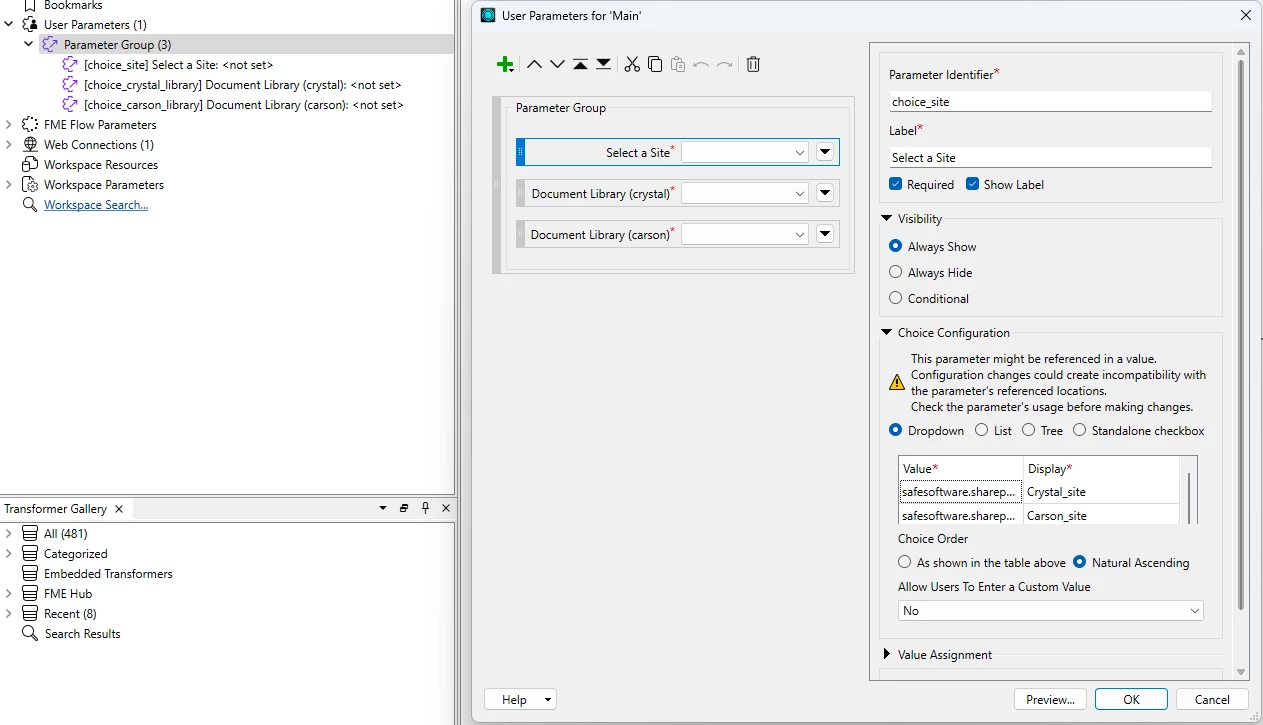
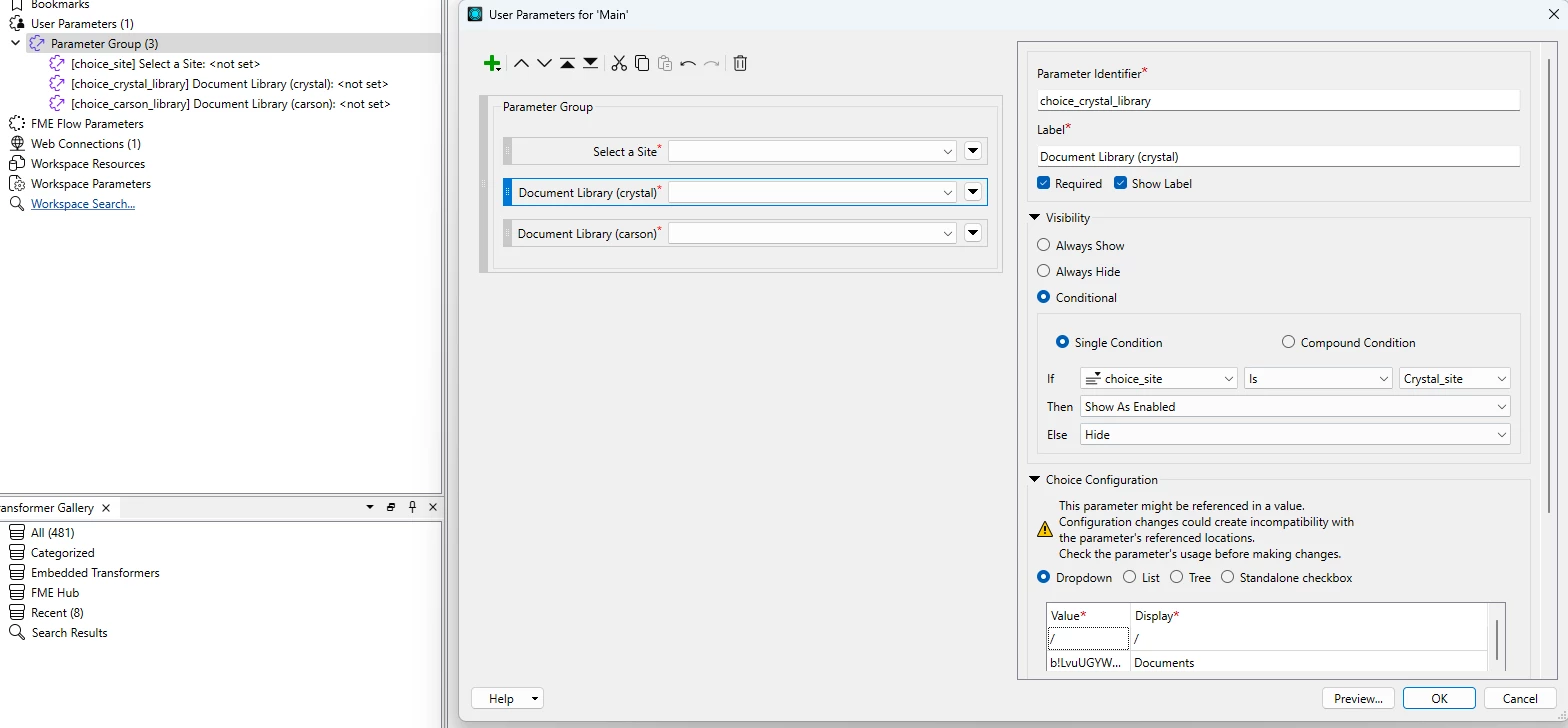
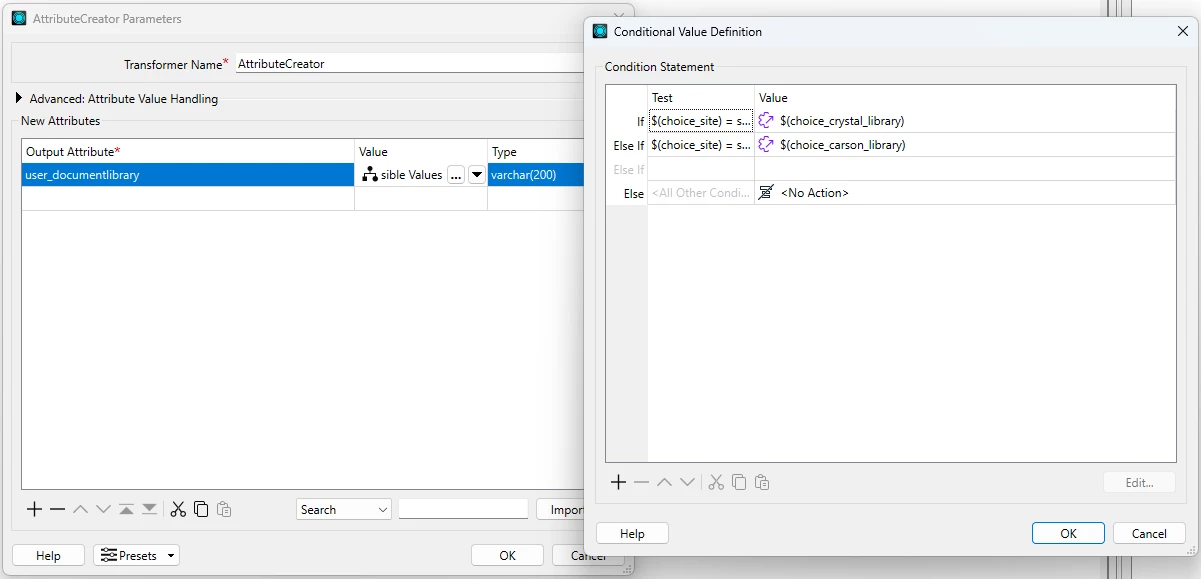
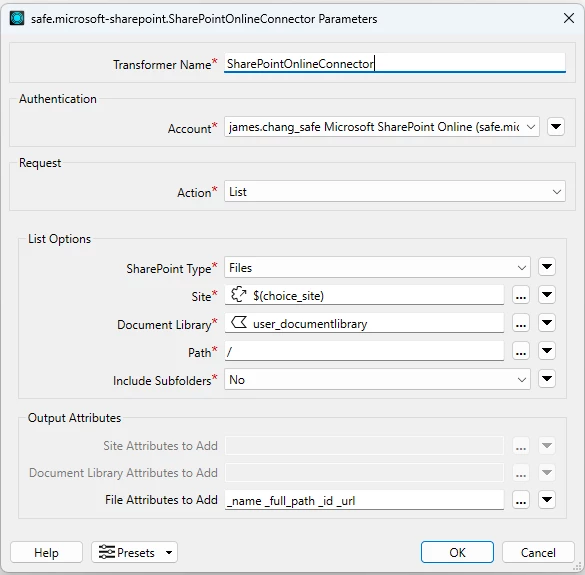
Below is a rough outline of a semi-dynamic setup with user params:

  • User parameters:
    • A choice parameter to select site
    • Choice parameters to select document library, conditionally exposed based on site selected

    •  

  • In the workspace

    • AttributeCreator to conditionally assign the correct Object Identifier(s), depending on site selected, to an attribute
    • SharePointOnlineConnector set to reference the user parameter and the attribute passed from AttributeCreator

    • Note once you assign an attributes or user parameters to a SharePointOnlineConnector field, you may not be able to browse for other items as these values are resolved at runtime.

Hope this clears things up and helps you get it working!