



This guide explains how Safe Software Partners can access our Trust Center, review private security and compliance content, and safely share information with customers.
Use the Private Partner Access link at the end of this guide to sign in with your FME Account and be redirected to the Trust Center.
Partner vs. Customer Access Overview
| Feature | Partner | Customer |
| Primary Access Method | Private Partner Access link (provided at end of guide) | Public Trust Center (https://trust.safe.com) |
| Authentication | Required via FME Account (company-domain only) | Required only for private content (via Get Access) |
| Eligible Emails | Company-domain only. FME Account profile must include first/last names | Company-domain emails only |
| NDA Requirement | Accept NDA at first access (or assign signer). | Accept NDA after request approval |
| Redirect After Login | Automatic redirect to Trust Center | Redirected via emailed magic link |
| Magic Link | Ignore magic link emails as they expire quickly; always use Private Partner Access link | Customers receive a magic link to the Trust Center to sign the NDA. |
| Private Content Access | After domain verification + NDA. | Must submit request via Get Access; access is then approved and granted with signed NDA |
| Public Content Access | Yes | Yes |
| Access Expiry | Does not expire if linked to partner domain; contact security@safe.com if you see expiry message | Expires ~6 months; can renew via request |
| Document Downloading | Allowed; private documents are watermarked and cannot be shared with customers. | Allowed; private documents are watermarked and should not be shared |
| How to Share Content | Direct customers to the public Trust Center; do not share private files | Customers request their own access |
Reviewing this Guide
We recommend reviewing this guide in full before using the Trust Center link provided at the bottom of the article.
This will help you understand:
- Public vs. private content
- How to use the search feature
- How to properly share content with customers
Public View vs Private Content
The Trust Center includes both public and private information.
- Public-facing content is available to anyone. Customers can browse public content without requesting access.
- Private content requires a validated company email domain and acceptance of a clickwrap NDA (for both partners and customers).
Partner Access Instructions
To access private content as a Partner:
- Scroll to the end and click Private Partner Access.
- Sign in with your FME Account (company-domain email only).
- You will be automatically redirected to the Trust Center with partner access enabled.
Important: Personal emails (e.g., @gmail, @hotmail) cannot access private content.
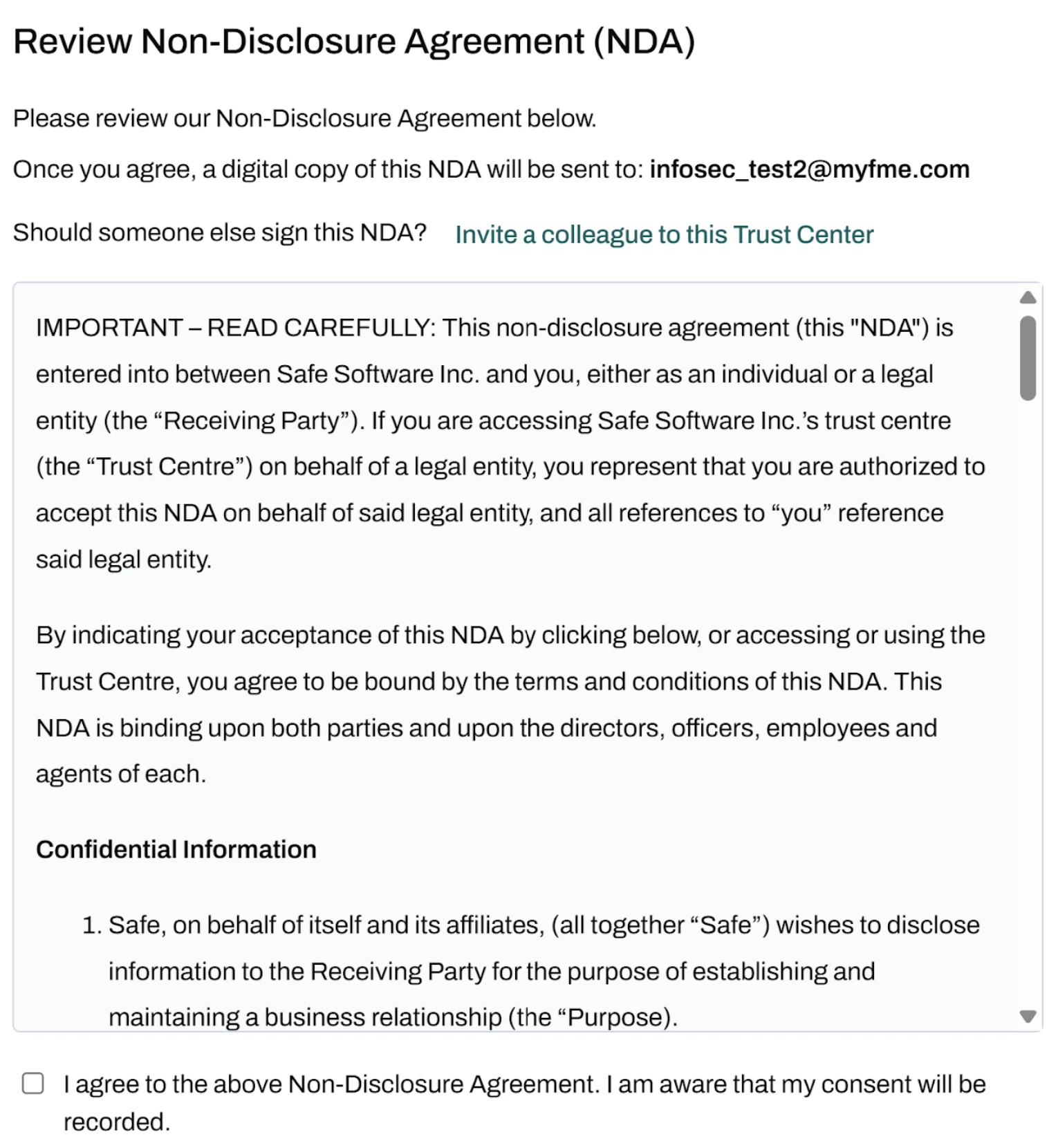
NDA & Policy Review
On first access, you’ll be prompted to review:
- SafeBase Terms of Service
- SafeBase Privacy Policy
- Safe Software’s Privacy Policy
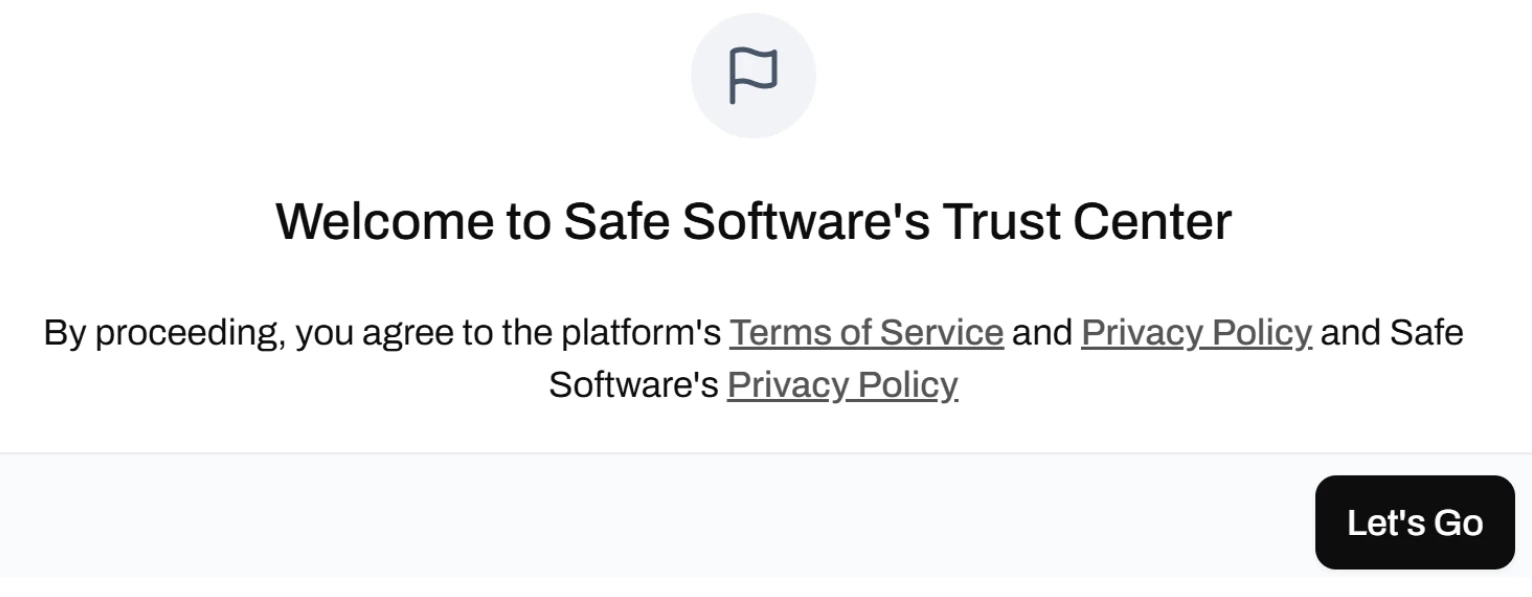
You must also sign a clickwrap NDA or you may assign it to someopne else in your oganization to sign.Once completed, private content becomes available.
Navigating the Trust Center
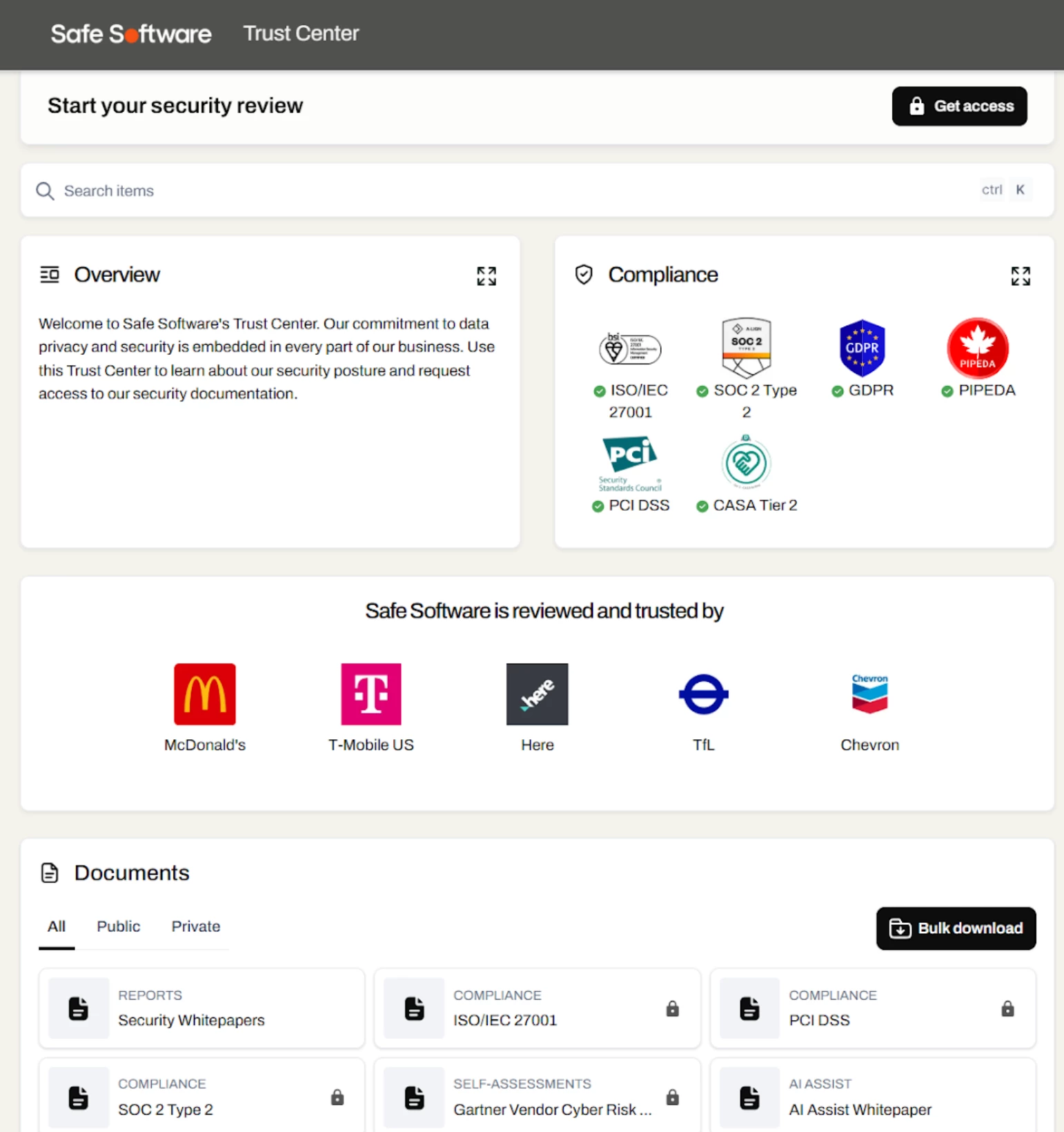
Key sections include:
- Compliance Trophy Case: certificates and badges
- Documents: Public and private documents for viewing or downloading
- Cards & Items: Browse content organized by cards; green checkmarks indicate additional details are available
- Knowledge Base (FAQ): Find answers to common security questions
- Trust Center Updates: View announcements about new certificates or content. Subscribe and receive email notifications when we update our compliance information or publish new security content
Searching
There are two ways to search within the Trust Center:
- Search items: searches across documents and cards
- Knowledge Base (FAQ) Search: searches across all available FAQ entries
Tip: Type keywords to quickly filter results
Private Documents & Sharing Rules
Private documents are watermarked and must not be shared externally. Partners must always direct customers and prospects to the public Trust Center.
How Customers Access Private Content
Customers and prospects must follow a different path to request access. To ensure proper tracking and NDA coverage, please direct customers as follows:
- Go to https://trust.safe.com (or fme.safe.com/security), or share direct item links using the Copy Link function.
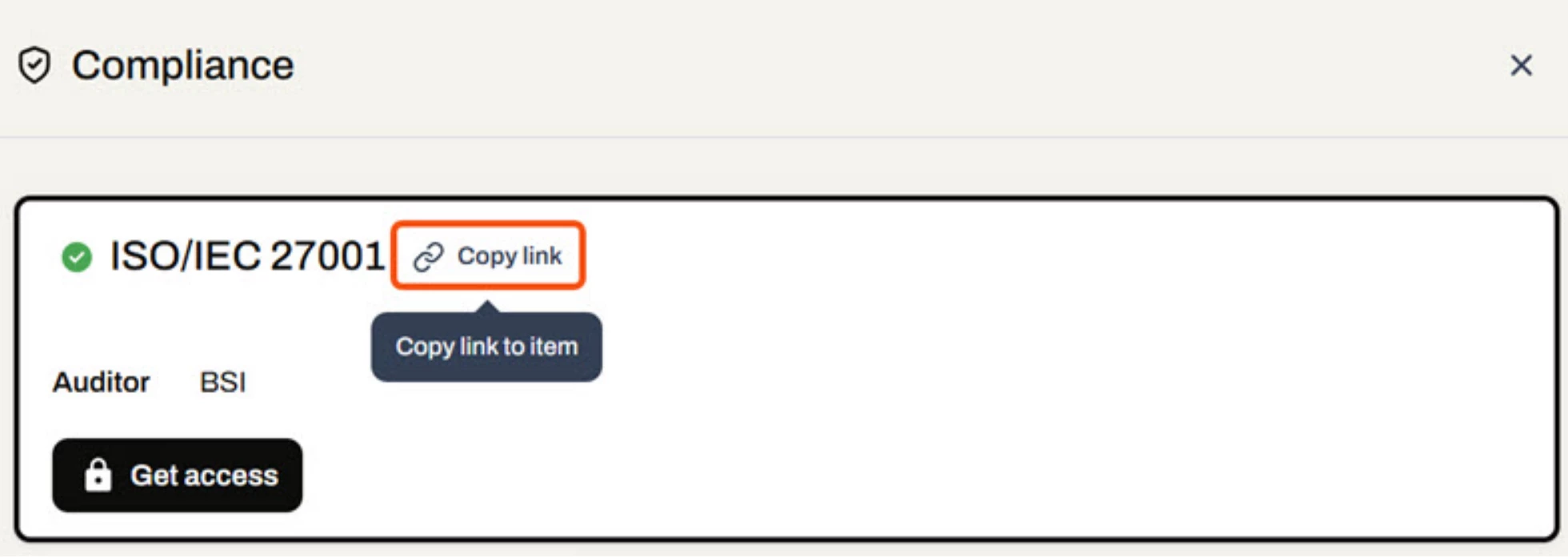
- Click Get Access and submit the request form
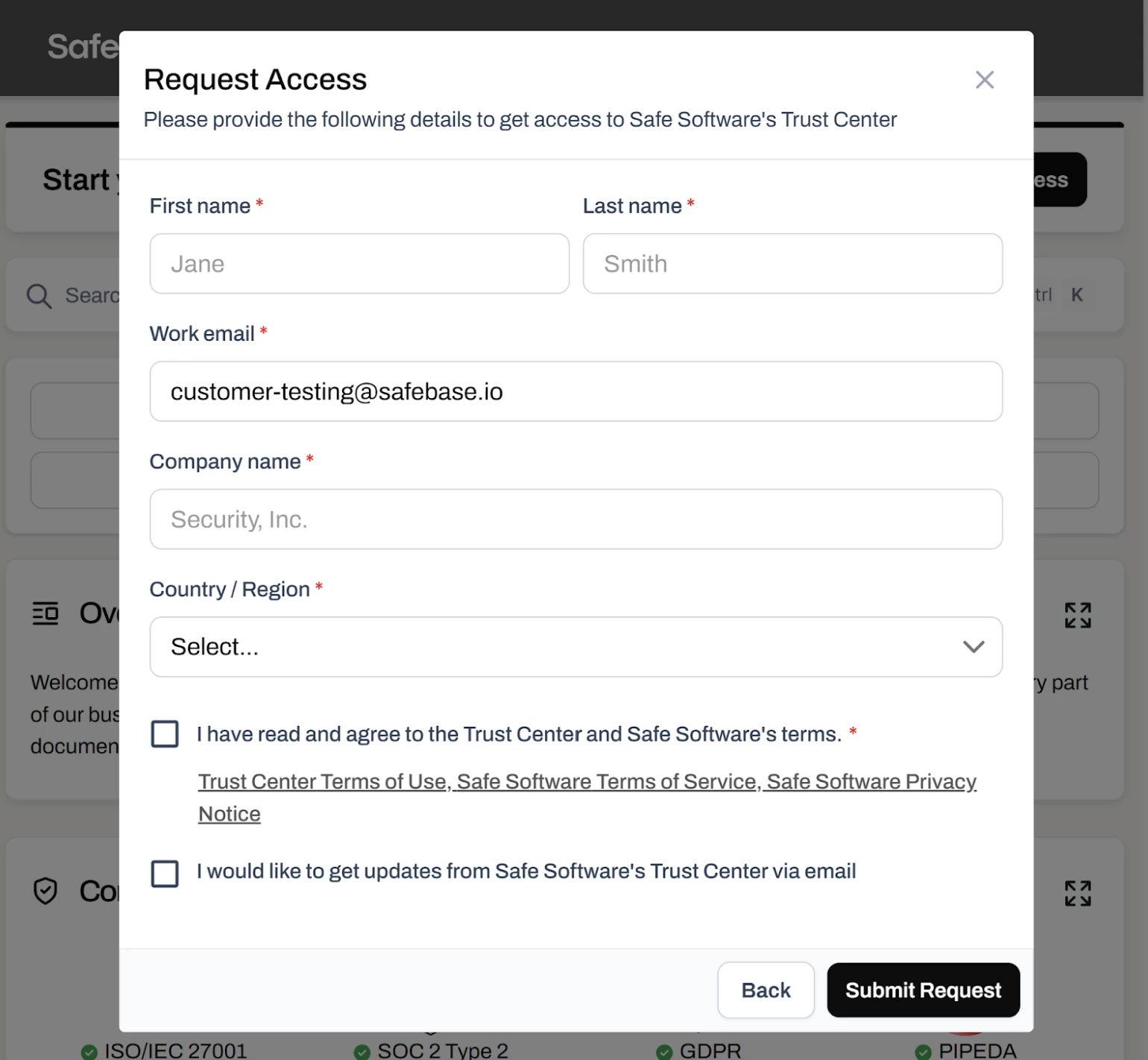
- Security team reviews the request (generally within an hour or within 72 hours)
- Customer receives a magic link via email
- Customer signs the clickwrap NDA
- Private content becomes available
Partner Direct Access (via FME Account)
Partner access requires:
- Using the Private Partner Access link
- Logging in with your FME Account
- Ensuring your FME Account profile includes your first and last name
You may receive a magic link email, but it expires quickly - always use the partner link for reliable access.
👉 Private Partner Access
Please reach out to the Security team if you have any questions at security@safe.com.